
Hearvo USB 3.0 HDMI KVM Switch
4.0Editor score
4K660Hz HDMI Output
Simple Plug and Play
Two Way Switching Options
This guide compares the top 10 laptop with KVM support solutions for seamless dual device control, high resolution video output, and efficient workspace
Finding the right laptop with KVM support can transform your workflow by allowing seamless switching between multiple devices on a single monitor setup. Whether you manage work and personal laptops or need to connect gaming consoles to your workspace, a reliable switch ensures efficiency.
We evaluated the top options based on resolution support, USB data transfer speeds, charging capabilities, and overall compatibility with modern operating systems. Our analysis focuses on how well these devices handle complex multi-monitor setups without compromising performance or stability.
Each pick highlights unique strengths like high bandwidth USB-C connections, triple monitor support, or advanced EDID emulation. Keep in mind that product availability and pricing change frequently, so verify current details before making your final purchase decision.
4.0Editor score

4.2Editor score
4.6Editor score
This side by side comparison outlines the key specifications of all ten reviewed products to help you quickly identify which solution fits your specific technical requirements and budget.


This AV Access docking station serves as a robust hub for users needing to switch between a laptop and a desktop while maintaining a triple monitor setup. It achieves a strong rating by delivering 8K resolution capabilities and substantial USB bandwidth.
We may earn a commission when you buy through this link, at no additional cost to you.
Its standout feature is the ability to share a single gigabit Ethernet connection between both computers. This allows downloads and sync tasks to continue on the background machine while you work on the active one. The 10Gbps USB-C ports also handle external SSDs with ease.
Users should note that macOS support for extended displays is limited to mirroring. This is a common constraint with Thunderbolt and USB-C MST protocols but may affect those needing independent windows across three screens on a Mac.
It is the ideal choice for developers, designers, or power users who need maximum screen real estate and uninterrupted network connectivity. If you need a single point of connection for your entire dual computer ecosystem, this is the top recommendation.
The ability to drive three independent monitors allows for expansive multitasking across work and personal devices without the hassle of unplugging cables.
Sharing the LAN port ensures that internet-dependent tasks like cloud backups or server monitoring do not pause during the switching process.
We may earn a commission when you buy through this link, at no additional cost to you.
The Hearvo switch provides an entry-level solution for those who need basic switching between two computers on a single screen. It focuses on value while maintaining solid 4K video performance and standard USB 3.0 speeds.
We may earn a commission when you buy through this link, at no additional cost to you.
Its simplicity is its greatest asset. You can plug in your HDMI and USB cables, and it will automatically detect and switch devices without needing software configuration. The included remote switch helps keep the desk clean if the unit is tucked away.
The primary limitation is that it supports only one monitor. If you are upgrading to a dual screen workspace later, this unit will not scale. It is strictly for single display setups requiring peripheral sharing.
This model is perfect for home offices or gaming setups where a single high-definition monitor is the priority. It delivers excellent value for users who want reliable HDMI switching without paying for advanced docking features.
At a budget friendly price, this switch removes the financial barrier for users looking to organize their desk with minimal investment.
The wired remote allows you to toggle between systems from a distance, which is helpful if the switch is hidden behind the monitor stand.
We may earn a commission when you buy through this link, at no additional cost to you.
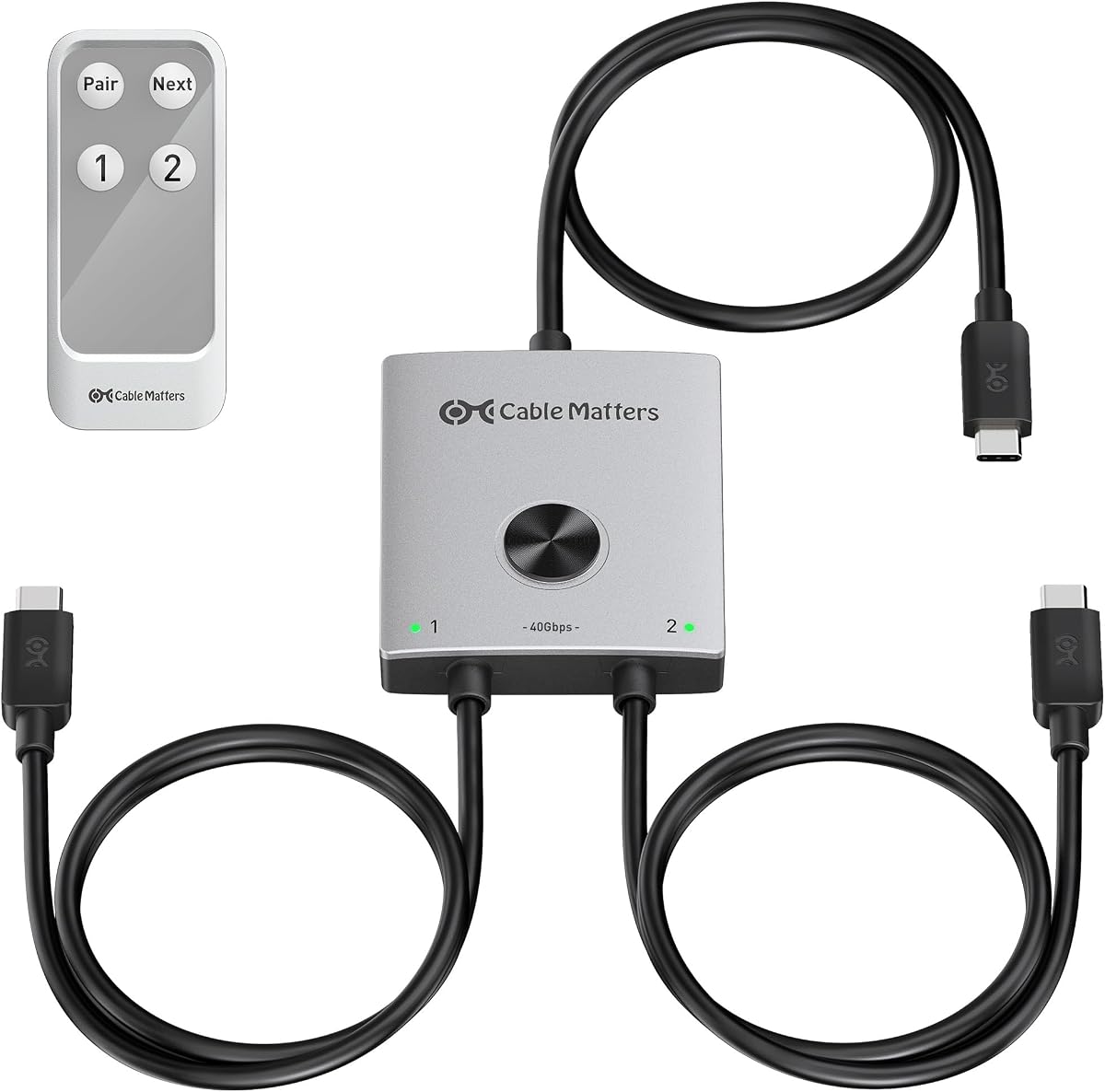
This switch is engineered for professionals using high-end Thunderbolt docking stations. It handles 40Gbps data transfer rates which is essential for users relying on ultra-fast external storage or high-resolution displays.
We may earn a commission when you buy through this link, at no additional cost to you.
The RF remote control is a premium touch that allows switching without pointing at the device. The 140W power delivery ensures that even demanding laptops stay charged during active use. It is built to maintain speed when connecting to complex workstation docks.
A key requirement is that the docking station must have a detachable host cable. If your dock uses an integrated cable, this switch cannot function. Users must verify their dock compatibility before purchasing to avoid connection issues.
It is the ultimate choice for those investing in top-tier peripherals like the CalDigit TS4 or similar Thunderbolt hubs. If you need the fastest possible data and video transfer speeds for a dual laptop setup, this device delivers.
Maintains near native speeds for Thunderbolt docks, ensuring no slowdowns when transferring large video files or running high-resolution displays.
Supports high wattage charging which is crucial for power hungry laptops that might otherwise throttle performance under heavy load.
We may earn a commission when you buy through this link, at no additional cost to you.
This hybrid switch is unique in its ability to connect four computers using mixed video ports like DP and HDMI simultaneously. It is designed for environments where users need to switch between more than the standard two devices.
We may earn a commission when you buy through this link, at no additional cost to you.
The EDID emulator helps prevent screen flickering or resolution loss when switching inputs. This feature is vital for maintaining a seamless experience when moving between different desktop configurations. It supports dual 4K displays which is impressive for this class of device.
However, connecting four computers requires managing multiple video cables per PC for dual monitor setups. This can create cable clutter unless managed with high quality cable ties or a desk with built-in management features.
It is ideal for IT testers, developers, or small offices where multiple machines share a single large workstation. If you need to toggle between more than two systems on a dual monitor setup, this offers a rare solution.
Accepts different video standards at once allowing older and newer PCs to coexist on the same monitor setup without adapters.
Managing four computers on two screens is difficult with standard switches, making this a unique option for power users.
We may earn a commission when you buy through this link, at no additional cost to you.
This docking KVM switch turns a single laptop into a triple monitor workstation. It is excellent for users who need maximum productivity from a single computer while keeping the ability to switch to a second laptop.
We may earn a commission when you buy through this link, at no additional cost to you.
The MST technology allows for extended displays on Windows systems. The USB ports support 10Gbps data rates which is great for external hard drives. The 100W charging means you do not need a separate power brick for your laptop.
Be aware that macOS M1 and M2 chips do not support MST so you will only get a mirrored screen on Macs. Also, your laptop CPU should be at least 11th Gen for best performance with three screens.
It is perfect for traders or editors who need vast screen space for charts or timelines. If you need to turn a single laptop into a full desktop workstation while sharing USB devices with a second laptop this works well.
Multi-Stream Transport enables independent windows across multiple displays which is essential for true productivity enhancement.
Using one cable for video and power reduces cable clutter significantly and keeps the laptop running without extra adapters.
We may earn a commission when you buy through this link, at no additional cost to you.
This device functions as a full docking station combined with a KVM switch. It provides an array of ports including USB 3.0 and 2.0 along with audio and SD card slots. This makes it a comprehensive hub for any desk.
We may earn a commission when you buy through this link, at no additional cost to you.
The shared Ethernet feature is useful for keeping both laptops connected to the internet even if you are not actively using one. The switching is fast and uses EDID emulation to prevent display flickering when toggling between systems.
Like other USB-C switches it does not support extended displays on Mac OS due to system limitations. It works best with Windows laptops or when a Mac Mini is paired with a Windows laptop for development tasks.
It is ideal for those who need to connect many peripherals like a webcam, printer, and external drives. If you want a single device that handles charging, video and all your USB needs this is a strong choice.
The wide range of ports reduces the need for additional USB hubs making it a complete solution for connectivity.
Keeping the network active on both devices ensures background tasks remain uninterrupted during the switching process.
We may earn a commission when you buy through this link, at no additional cost to you.
This switch stands out for its support of 8K resolution. It allows users to run a triple monitor setup with extremely high clarity. The rating is high due to its reliability in handling demanding video and data loads.
We may earn a commission when you buy through this link, at no additional cost to you.
The shared Ethernet connection ensures that downloads do not stop when switching computers. The USB ports are fast enough for high speed external storage which is great for video editors or large file transfers.
One minor drawback is that video cables are not always included so you may need to buy HDMI or DisplayPort cables separately. Ensure you have the right length and type for your specific monitor connections before starting installation.
It is best for professionals who need high resolution graphics capabilities on multiple screens. If you are looking for a high performance switch that does not compromise on video quality or network stability this is an excellent option.
Handling 8K resolution ensures that detailed design work or high fidelity viewing remains crisp and clear.
The fast USB ports allow for quick data access which is critical for users dealing with large datasets regularly.
We may earn a commission when you buy through this link, at no additional cost to you.
This docking station allows you to connect two laptops to a dual monitor setup. It simplifies the workspace by allowing one mouse and keyboard to control either computer. It includes enough ports for most common peripherals.
We may earn a commission when you buy through this link, at no additional cost to you.
The gigabit Ethernet port ensures both laptops have internet access which is vital for remote work or file sharing. The 4K output provides sharp visuals for productivity tasks or entertainment needs.
Users should use the original power adapters for best charging results as the dock supports pass-through charging. This ensures your laptop remains fully powered even under heavy workloads.
It is well suited for hybrid workers who need to switch between a work laptop and a personal one easily. The clean setup and shared peripherals make it a strong contender for modern dual device home offices.
Switching between work and personal devices becomes instant allowing you to keep both environments organized on one desk.
Sharing devices like printers and webcams saves money and desk space making the setup more efficient overall.
We may earn a commission when you buy through this link, at no additional cost to you.
This DisplayPort switch is designed for gamers or users who need high refresh rates. It supports 4K at 120Hz which is excellent for smooth motion in games. The wireless controller adds convenience to the setup.
We may earn a commission when you buy through this link, at no additional cost to you.
The USB 3.0 ports allow for fast data transfer for peripherals. It includes an external power adapter which ensures stable performance for connected USB devices that draw high power.
You will need to purchase specific DisplayPort cables for it to work correctly. If your monitors are HDMI only this will not fit your setup without additional adapters.
It is a great choice for a gaming PC and work PC setup where a single monitor is used for both. If you prioritize frame rates and display quality this switch delivers strong video performance.
High refresh rates ensure that competitive gaming remains smooth without lag when switching from work to play.
The wireless controller provides a clean desk experience without wires cluttering the immediate workspace area.
We may earn a commission when you buy through this link, at no additional cost to you.
This switch offers a mid range speed option for USB-C users. It supports 20Gbps transfer which is faster than standard USB 3.2. It also supports up to 140W charging for high performance laptops.
We may earn a commission when you buy through this link, at no additional cost to you.
The wireless remote makes switching easy. It is compact and portable so you can take it on travel if needed. It supports up to 8K video though usually at lower refresh rates.
Users with docking stations should check that the pigtail length is under 50cm. Exceeding this limit can cause signal issues. This is a critical check before using it with complex hub setups.
It is a solid choice for users needing faster data than standard switches allow. If you want a portable and powerful switch for modern laptops this provides good speed and charging capabilities.
The 20Gbps speed is a happy medium between basic HDMI and top tier Thunderbolt switches.
Its compact size allows for easy travel making it great for mobile professionals who switch between hotels and home.
We may earn a commission when you buy through this link, at no additional cost to you.
Selecting the right KVM switch involves evaluating video resolution, USB data speed, charging capabilities, and OS compatibility to ensure seamless switching.
Video resolution determines how sharp your display will be. Look for 4K660Hz or higher for detailed work. Refresh rate matters if you game or use fast scrolling interfaces.
Prioritize switches that match your monitors resolution to avoid blurring or signal issues.
USB speed impacts how fast peripherals communicate. Standard USB 3.0 offers 5Gbps but USB 3.2 or 3.1 Gen2 offers 10Gbps or more. This matters for external drives.
Higher speeds prevent lag when transferring large files or using fast storage devices.
Power Delivery (PD) allows you to charge your laptop through the switch. Most modern switches offer 100W or 140W. Ensure it matches your laptop charger requirements.
A switch with high PD helps you use just one cable for video and power.
MacOS often limits extended displays on USB-C switches to mirror mode. Windows and Linux usually support Multi-Stream Transport (MST). Check your laptop CPU generation for support.
Verify that the switch supports your specific OS to avoid display limitations.
Decide if you need one or multiple monitors. Some switches support up to three screens. Ensure the switch ports match your monitor inputs.
A triple monitor switch expands your workspace significantly but adds complexity to cabling.
Advanced KVMs share internet connections. This keeps background downloads active on the inactive computer. Check if the device includes a LAN port for this feature.
Network sharing is crucial for productivity workflows involving cloud tasks.
Switching can be done via button, remote, or hotkeys. Wired or wireless remotes add convenience. Ensure the method fits your desk layout.
Easy switching reduces friction when moving between work and personal tasks.
Check USB-A and USB-C port counts. You need enough ports for your mouse, keyboard, drive, and other accessories. Extra USB ports are often helpful.
Choose a switch with enough physical ports to avoid needing extra hubs.
Start by connecting the HDMI or DisplayPort video cables from your computers to the switch. Then connect your monitor to the output port. Ensure your USB devices plug into the shared USB ports on the unit.
If using a power adapter plug it in first to ensure stable operation. Press the switch button or use the remote to toggle between devices. You may need to change the input source on your monitor to see the display.
Keep the area around the switch clean and dry to prevent dust buildup. Do not pull on cables to disconnect them. Regularly check connections for signs of wear to maintain consistent performance.
Most USB-C KVM switches do not support extended displays on MacBooks due to OS limitations. You will likely get a mirrored display. You need to check for Thunderbolt certified models for extended display support.
Yes but check the refresh rate support. Standard switches support 60Hz while gaming switches may support 120Hz or more. Ensure your cables are high enough speed to handle the refresh rate.
DisplayPort switches often support higher refresh rates and resolutions than HDMI. HDMI is more common for general monitors. Choose based on what ports your monitors have.
No most KVM switches are plug and play. They work immediately when connected. Drivers are rarely required for basic functionality like video and USB.
This often happens due to resolution mismatches. An EDID emulator helps fix this by keeping display settings stable. Ensure all cables are securely connected.
Yes many support Power Delivery to charge your laptop. Check the wattage to ensure it is enough for your device. Using original adapters is recommended.
Most switches support two computers. Some hybrid models support up to four. Check the product specs for the maximum number of inputs supported.
The docking station must have a detachable host cable. Some docks use integrated cables which will not work. Check your dock model for compatibility before buying.
Choosing the right switch depends on your specific needs for screen count and speed. The AV Access 8K KVM Switch leads with performance and network sharing. The Hearvo option offers great value for budget users.
Prioritize features like EDID emulation if you have multiple monitors. High speed USB-C is essential for modern laptops. Ensure compatibility with your OS before purchasing.
Always check current prices as they change frequently. Select a device that fits your current setup but also has room for future upgrades. This guide helps you make a confident choice.