
Linux Mint 22.3 Bootable USB Flash Drive (Cinnamon)
4.6Editor score
Focused on Mint stability
Pre-installed office suite
Ideal for Windows switchers
This guide compares the top 10 bootable linux usb drive options for beginners and pros, highlighting performance, compatibility, and included distros for every
A bootable linux usb drive lets you run an operating system directly from a flash stick without installing it on your hard drive. This is perfect for testing new software, recovering data, or securing your privacy on any compatible computer with ease and speed.
We evaluated ten highly rated options based on user feedback, included distributions, and compatibility with modern and legacy hardware. Each product offers unique features like multi-boot support, specific distro focus, or specialized tools for system recovery and advanced users.
Every pick in this list shows what makes that specific drive stand out for different scenarios and user preferences. Please note that product prices and availability can change frequently on retail platforms, so verify current details before making your final purchase decision.
4.6Editor score

4.1Editor score
4.3Editor score
The following table provides a side-by-side comparison of all ten selected products, detailing their specific features, compatibility notes, and key strengths to help you choose the right option for your computing needs.


This top ranked drive stands out with sixteen pre loaded operating systems including popular Linux distributions and Windows 11. With a 4.1 star rating it offers a comprehensive toolkit for users needing flexibility across different hardware environments without extra downloads.
We may earn a commission when you buy through this link, at no additional cost to you.
The included list spans from Kali for security testing to Ubuntu and Mint for daily use. It supports both UEFI and Legacy boot modes making it accessible for older and newer machines alike. The USB 3.2 interface ensures faster data transfer during live sessions or installations.
Users should be aware that Secure Boot settings on some motherboards might require disabling to boot correctly. The drive includes visual guides to help navigate these BIOS settings quickly reducing frustration during the initial setup phase on unknown hardware.
Anyone seeking a one stop solution for testing multiple operating systems will find this drive indispensable. It is particularly useful for IT professionals or students who need to demonstrate or evaluate various environments on the go with reliable performance.
Having sixteen options means you can test everything from privacy focused Tails to gaming friendly Pop_OS without downloading ISOs separately.
Support for both Legacy BIOS and UEFI ensures that whether you have an old office PC or a modern laptop the drive will boot successfully.
We may earn a commission when you buy through this link, at no additional cost to you.
Designed specifically for those new to open source computing this drive bundles nine user friendly distributions like Ubuntu and Linux Mint. It aims to simplify the first experience by including common office and multimedia tools right out of the box without configuration.
We may earn a commission when you buy through this link, at no additional cost to you.
The manufacturer updates the drive to include the latest Long Term Support versions ensuring stability for new users. A printed guide helps navigate the boot process which can be tricky for first timers. The drive supports both legacy BIOS and modern UEFI systems.
While it excludes ARM based devices and Chromebooks it covers the vast majority of standard PC hardware. The 32GB capacity is sufficient for the included ISOs but leaves little room for storing personal data outside the system files on the drive itself.
This option is ideal for anyone making the switch from Windows who wants to try Linux safely before committing to a hard drive installation. The included tools make it easy to feel productive immediately upon booting into the live environment.
The included user guide and pre-selected distros reduce the technical knowledge needed to get started with Linux on your own machine.
Most included distros come with office suites and browsers pre installed allowing immediate use for work or school tasks without internet.
We may earn a commission when you buy through this link, at no additional cost to you.
This dedicated Mint drive offers a streamlined experience for users who want to try the most popular Linux distribution without the hassle of manual installation. With a 4.6 rating it highlights the ease of use and stability that Mint is famous for among desktop users.
We may earn a commission when you buy through this link, at no additional cost to you.
The drive includes the latest Cinnamon desktop environment along with essential applications like LibreOffice and media players. This makes it perfect for evaluating whether Mint fits your workflow before making any changes to your computer's existing storage or operating system.
Because it focuses on a single distribution it lacks the variety of multi-boot drives but ensures that every byte is optimized for Mint performance. It supports running directly from the USB allowing you to test hardware compatibility and features safely.
For users switching from Windows or needing a reliable portable OS this drive provides a clean and ready to use environment. It is particularly recommended for those who have heard positive things about Mint and want a straightforward way to experience it.
Linux Mint comes pre configured with all necessary drivers and apps making it one of the smoothest experiences for new Linux users.
Running from USB ensures your main hard drive remains untouched while you explore the interface and capabilities of the operating system.
We may earn a commission when you buy through this link, at no additional cost to you.
Debian is known for its rock solid stability and this drive brings the latest version to your USB stick. It is designed for users who value security and control over their computing environment without unwanted tracking or unnecessary background software.
We may earn a commission when you buy through this link, at no additional cost to you.
The system is lightweight and optimized for performance across a wide range of hardware including older machines. Its open-source nature means you can fully customize the environment to suit specific development or server needs without restrictions.
While it offers high stability it may not include as many pre-installed consumer applications as other distros. This means users might need to install additional software manually but gain a cleaner and more secure foundation in return for that effort.
This drive is perfect for developers or IT professionals who need a reliable base system for testing or server deployment. It is also suitable for privacy conscious users who want a transparent and trusted operating system on the go.
The absence of tracking and bloatware ensures that your data remains under your control with no hidden telemetry processes running in the background.
Debian is optimized to run efficiently even on older hardware making it a great choice for reviving computers that struggle with modern Windows versions.
We may earn a commission when you buy through this link, at no additional cost to you.
This drive focuses on providing a reliable live environment for Mint users who intend to install or repair the system. It includes specific guidance on backing up data before installation which is a crucial step often overlooked by users new to Linux setup.
We may earn a commission when you buy through this link, at no additional cost to you.
The Cinnamon environment is optimized for x86-64 PCs ensuring smooth performance on standard desktop and laptop hardware. It allows you to test the drive compatibility and features directly without altering any existing hard drive partitions until you are ready to commit.
While it does not support Apple Silicon or ARM based devices it covers the majority of standard Windows PCs. The included notes on boot settings help users navigate different BIOS configurations which can vary significantly between manufacturers.
Ideal for those specifically targeting Mint for their next operating system this drive offers a clean path to installation. It balances ease of use with necessary precautions ensuring a safe transition from your current system.
The drive includes specific instructions to back up your data before proceeding with installation preventing accidental loss of important files on your hard drive.
Designed for x86-64 architectures it ensures that users with standard Intel or AMD processors get optimal performance and full feature support.
We may earn a commission when you buy through this link, at no additional cost to you.
This drive offers three different versions of Linux Mint allowing users to test compatibility across different hardware capabilities. It includes both 64bit and 32bit versions which is particularly useful for older computers that might not support newer architectures.
We may earn a commission when you buy through this link, at no additional cost to you.
The inclusion of Linux Mint 19.3 32bit ensures that older hardware can still run a stable and supported version of the OS. This versatility makes it a strong choice for organizations or individuals managing a mixed fleet of computer ages.
A printed user guide helps navigate the boot process and installation steps reducing the complexity for first time users. The drive supports both legacy and UEFI boot modes making it accessible to a wide range of systems without special configuration.
For anyone specifically looking to standardize on Mint across multiple devices this drive provides a convenient way to test different versions. It ensures that you can find the right version for your specific hardware before committing to a full installation.
By including a 32bit option this drive ensures that older PCs can still benefit from the stability and usability of Linux Mint without being excluded.
Testing three versions allows you to choose the interface and features that best match your workflow and hardware performance constraints.
We may earn a commission when you buy through this link, at no additional cost to you.
This drive is unique for including system recovery tools like Clonezilla alongside standard Linux distributions. It is particularly useful for IT professionals who need a quick way to clone drives or restore backups without carrying multiple separate tools.
We may earn a commission when you buy through this link, at no additional cost to you.
The inclusion of Kali and Tails adds security and privacy features that are valuable for specific use cases like penetration testing or anonymous browsing. It also retains a legacy Windows XP option for very old systems that require specific compatibility.
Video boot instructions help users understand how to navigate the boot menu which can be intimidating on new hardware. The USB 3.0 interface provides decent speed for live sessions though the 16GB capacity limits how many tools you can store later.
Ideal for tech support and enthusiasts who need a compact toolkit for maintenance tasks this drive covers a broad range of scenarios. It balances modern distros with legacy tools to ensure readiness for diverse computer environments.
Clonezilla allows you to create disk images directly from the USB drive making it essential for backup and disaster recovery planning.
Having Kali and Tails pre loaded means you can perform security audits or browse anonymously without needing to download additional sensitive software.
We may earn a commission when you buy through this link, at no additional cost to you.
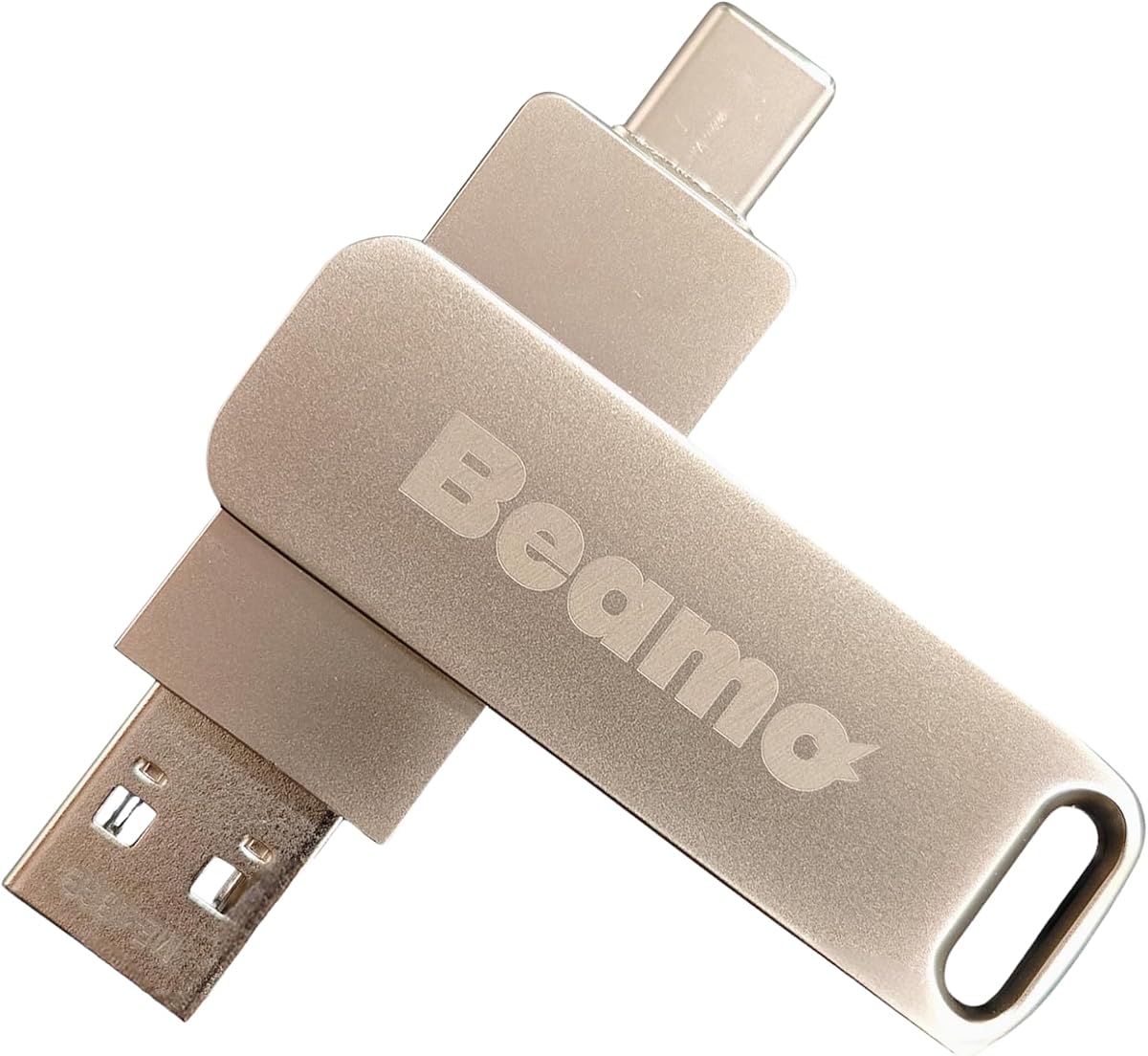
This drive stands out with dual USB-A and USB-C connectors ensuring it works with both legacy desktops and modern laptops. It is built with high quality flash chips to ensure longevity and consistent performance during intensive live sessions or installations.
We may earn a commission when you buy through this link, at no additional cost to you.
It supports full customization allowing you to add or replace ISOs to suit your specific needs over time. This flexibility means the drive can evolve with your requirements rather than becoming obsolete when you need a new distribution.
The included software suite covers productivity and gaming making it a versatile option for daily use. Steam and Epic support via launchers ensures that you can test gaming capabilities on the fly without needing a full desktop install first.
For users who value hardware quality and future proofing this drive offers a premium option. It is suitable for those who need to connect to devices without traditional USB ports and want a reliable long term solution.
The dual port design ensures compatibility with the latest laptops that may have removed USB-A ports in favor of USB-C exclusively.
Clear instructions allow you to manage your own ISOs so you can keep the drive updated with the latest tools without buying a new stick.
We may earn a commission when you buy through this link, at no additional cost to you.
This drive focuses on the Ubuntu ecosystem providing three versions tailored for different hardware ages and performance needs. It includes the latest 24.04 LTS alongside older options like Lubuntu to ensure compatibility across a wide spectrum of machines.
We may earn a commission when you buy through this link, at no additional cost to you.
Lubuntu is specifically designed for very old PCs making this kit useful for extending the life of older hardware. The main Ubuntu versions come with common software that covers most daily tasks immediately after booting.
A printed guide is included to help users navigate the setup process quickly. Support is available if issues arise which adds peace of mind for less technical users who might need assistance during the first boot.
Ideal for organizations standardizing on Ubuntu this drive provides the flexibility to test different versions. It ensures that you can find the right balance between features and performance for your specific hardware setup.
The inclusion of Lubuntu provides a lightweight option that can breathe new life into older machines that struggle with heavier desktop environments.
Pre-installed office and web tools mean you can get to work immediately without needing to download extra packages after booting the live environment.
We may earn a commission when you buy through this link, at no additional cost to you.
This is a professional grade drive that includes both desktop and server installers for Ubuntu. It is ideal for system administrators or learners who need to deploy servers and workstations from a single portable medium without separate media.
We may earn a commission when you buy through this link, at no additional cost to you.
The dual USB-A and USB-C support ensures compatibility with modern and legacy hardware alike. It allows for direct booting or installation and includes tools to revive old hardware with lightweight rescue environments for diagnostics.
Clear step-by-step instructions make it easier to customize the drive or add new ISOs as needed. This flexibility ensures that the drive remains useful as your needs evolve from basic desktop usage to more complex server management tasks.
For professionals who manage both desktop and server environments this drive offers a convenient unified solution. It reduces the need for multiple media files and streamlines the deployment process for diverse Ubuntu instances.
Including the server installer allows you to test and deploy headless environments from the same drive used for standard desktop installations.
Responsive support and high-quality hardware ensure that critical deployments can be handled with confidence and reliability in professional settings.
We may earn a commission when you buy through this link, at no additional cost to you.
Selecting the right bootable Linux USB drive requires considering several key factors to ensure compatibility and functionality for your specific needs.
Evaluate which operating systems are preloaded on the drive. Some offer a variety of choices like Ubuntu or Mint while others focus on specific tools for security or server tasks. Choose one that aligns with your primary use case to save time on downloading ISOs.
Look for drives that include versions relevant to your hardware and workflow needs.
Check if the drive supports both UEFI and Legacy BIOS boot modes. Modern computers use UEFI while older systems may rely on Legacy BIOS. A drive supporting both ensures you can use it on a wider range of hardware without configuration issues.
Ensure the product description explicitly mentions dual boot mode support for maximum flexibility.
Capacity determines how many operating systems and additional files you can store on the drive. Larger capacities like 64GB allow for multiple ISOs while smaller drives may suffice for a single system. Consider if you plan to store personal data alongside the OS.
Select a capacity that accommodates your current ISOs and leaves room for future updates.
USB 3.0 or 3.2 interfaces offer faster data transfer speeds compared to older USB 2.0 versions. This reduces wait times during live sessions and installations. Additionally check if the drive includes USB-C for modern laptops lacking standard USB-A ports.
Prioritize drives with USB 3.0 or higher for better performance and longevity.
Look for products that include printed guides or video instructions. These resources help navigate boot menus and BIOS settings which can be confusing for first time users. A user friendly setup process saves time and reduces frustration.
Choose options with clear documentation to simplify the initial boot and installation process.
Determine if the drive is tailored for beginners or professionals. Beginner options usually include common desktop distros with pre-installed tools while professional ones may offer server installers or security suites. Match the drive features to your skill level and goals.
Select a product designed for your experience level to maximize utility.
Some drives offer privacy focused distributions like Tails or Kali which are essential for secure browsing or testing. If privacy is a priority ensure the selected option includes tools that protect your data and anonymity during use.
Verify that security tools are included if you need enhanced privacy features.
Check if the seller provides customer support or a warranty period. Reliable support can be crucial if you encounter boot issues or need help with installation. Look for sellers with responsive communication channels to resolve potential problems quickly.
Opt for vendors with clear support policies to ensure a smooth purchasing experience.
Insert the USB drive into an available port on your computer and restart the system. Press the boot key such as F12 or Esc during startup to enter the boot menu and select the USB drive as the first option.
Once booted you can run the operating system directly from the USB without installing it. Explore the interface and software to ensure compatibility before deciding to install permanently on your hard drive.
To extend the life of your drive store it in a protective case and avoid exposing it to extreme heat or moisture. Always safely eject the drive when removing it to prevent data corruption on the device.
No you can run these drives directly from the USB port without installing software on your hard drive. This live mode allows you to test the OS and features safely without making permanent changes to your system configuration.
Most of these drives support both UEFI and Legacy BIOS boot modes making them compatible with older laptops. However always check the product details for specific hardware requirements to ensure full functionality on your model.
Yes many of these drives have extra space available for storing personal files alongside the operating system. However using them as primary storage is not recommended as frequent reads and writes may reduce their lifespan over time.
Booting from a USB drive is generally safe as it does not alter your hard drive unless you choose to install the OS. Always ensure you back up important data before making any changes to your system partition during installation.
A live USB lets you run the OS directly from the stick for testing while an installer copies the system to your hard drive for permanent use. Many drives support both modes allowing you to test before committing to installation.
Most of these drives are designed for x86 PC hardware and may not work on Macs especially newer Apple Silicon models. Always verify compatibility with ARM architecture before purchasing if you plan to use them on a Mac.
This roundup highlights ten top options for bootable Linux USB drives catering to various needs from beginners to professionals. The best overall choice offers the widest range of distributions and compatibility for diverse hardware environments.
When selecting a drive prioritize factors like boot mode support and included distributions to match your specific use case. Whether you need recovery tools or daily desktop utilities ensure the product aligns with your technical requirements.
Remember to verify current prices and availability before purchasing as these details can change frequently. Choosing the right drive ensures a smooth transition to Linux and enhances your computing flexibility effectively.