
Refurbished Tablet – Artisul D16 15.6 Inch Graphic Drawing Tablet
5.0Editor score
15.6 Inches Create Area
Full Laminated Screen
7 Shortcut Keys and Dial
Finding an affordable drawing tablet with a screen can be challenging for artists on a budget. These devices allow you to draw directly on a display, offering a more natural creative experience than traditional tablets. We have compiled a list of the most cost effective options available right now.
Our team analyzed ten real products based on their features, user ratings, and overall value. We looked at screen quality, pressure sensitivity, connectivity options, and compatibility with popular software. This ensures that every recommendation meets the needs of students and professionals alike.
Each pick below highlights specific strengths and potential trade offs to help you decide. You will find detailed reviews and a comprehensive buying guide to assist your choice. Please note that availability and pricing can change frequently, so verify details before purchasing.
5.0Editor score

4.4Editor score

4.5Editor score
As an Amazon Associate we earn from qualifying purchases.
This side by side comparison outlines the key specifications of all ten products to help you make an informed decision quickly.




The XP-PEN Artist12 stands out as a top choice for artists seeking an affordable screen tablet. It boasts an 11.6 inch HD IPS display that delivers vibrant colors and sharp details. The pen offers 8192 levels of pressure sensitivity, allowing for natural stroke control without needing batteries.
We may earn a commission when you buy through this link, at no additional cost to you.
Its standout feature is the pre-installed anti-reflective screen protector which reduces glare significantly. This makes drawing comfortable even under bright lighting conditions. The slim touch bar and six programmable keys let you customize your workflow for efficiency in software like Photoshop or SAI.
While it requires a connection to a computer and external power, these are standard limitations for this class. The need for HDMI and USB ports might require adapters for modern laptops. However, the value provided by the display quality and pen performance outweighs these minor inconveniences.
This tablet is ideal for students and hobbyists who need a reliable tool for digital art or note taking. Its compatibility with Windows, Mac, and Linux makes it a versatile option for various setups. We recommend it as a solid entry point into pen displays.
The battery-free pen mimics the weight and balance of a traditional pencil, providing a comfortable grip for long sessions.
You can use this tablet with almost any creative software including Photoshop, Illustrator, and MediBang for seamless integration.
We may earn a commission when you buy through this link, at no additional cost to you.
The VEIKK VK1200 V2 offers a full-laminated display which significantly reduces the gap between the pen tip and cursor. This technology enhances accuracy and provides a more direct drawing experience compared to older models. The anti-glare glass also ensures that your focus remains on the art.
We may earn a commission when you buy through this link, at no additional cost to you.
It supports a single-cable connection via USB-C which simplifies setup considerably. This feature is highly appreciated by users who want to minimize clutter on their desks. The pen includes tilt recognition allowing for more dynamic shading and stroke variation in your digital illustrations.
Some users may find the driver software requires some tuning to match their specific workflow preferences. Additionally, like most in this category it requires a host computer to function properly. Despite this, the build quality and screen performance make it a strong contender.
This model is perfect for illustrators who need a lightweight and portable device for travel or home use. The metal body adds durability and the included accessories like the glove and cleaning cloth are thoughtful additions. We see it as a great balance of price and performance.
Full lamination ensures that your pen touches exactly where the cursor appears, eliminating the offset common in non-laminated screens.
Even if your device lacks USB-C you can use HDMI and USB-A cables to connect to older laptops or desktops easily.
We may earn a commission when you buy through this link, at no additional cost to you.
The GAOMON PD1161 is designed to maximize efficiency with its eight press keys and two pen buttons. These shortcuts allow you to map commands for zooming or tool switching directly on the device. This customization can speed up your workflow significantly when using complex creative software.
We may earn a commission when you buy through this link, at no additional cost to you.
Its display offers a color gamut of 72% NTSC which translates to smooth color gradations. The pre-installed matte film gives the screen a paper-like texture which many artists prefer. This tactile feedback helps in achieving more precise lines during sketching or painting.
The setup requires a power adapter and HDMI and USB ports which can be cumbersome for some setups. You might need extra cables or converters depending on your laptop type. However, the extensive compatibility with various operating systems and apps makes up for the initial setup complexity.
This tablet is excellent for students and designers who value a high degree of customization. It is also suitable for online education as the screen can serve as an extended display for presentations. We recommend it for users who want control over their workspace.
The matte film reduces glare and provides friction similar to drawing on real paper for a familiar feel.
Teachers can use this to write notes on the screen for students in remote learning environments efficiently.
We may earn a commission when you buy through this link, at no additional cost to you.
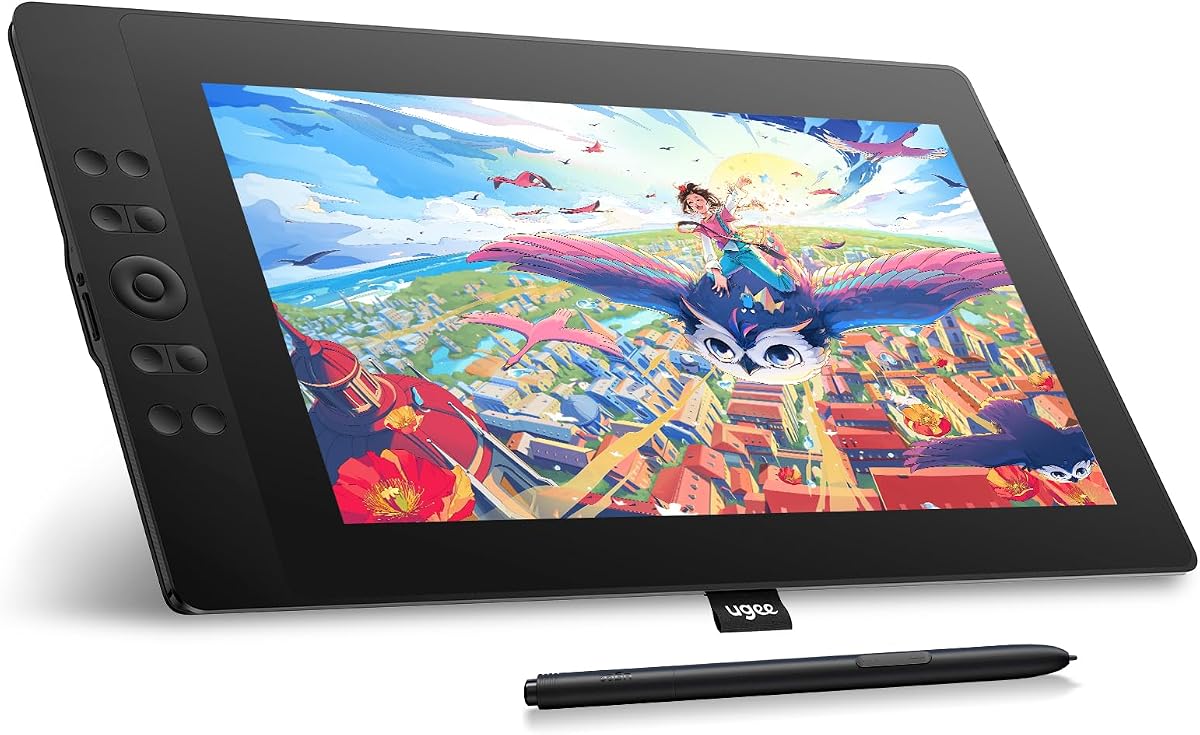
The Artisul D16 offers a larger 15.6 inch area which is rare at this price point. This extra space allows for more natural arm movements and detailed work without feeling cramped. The full-laminated screen ensures accurate cursor positioning across the entire display.
We may earn a commission when you buy through this link, at no additional cost to you.
It features a quick dial in addition to seven hotkeys giving you precise control over brush sizes and zoom. The adjustable stand supports multiple angles which helps in maintaining a comfortable posture during long sessions. Brightness adjustment buttons on the side add to the usability.
Since this is a refurbished model quality may vary between units so inspection upon arrival is advised. It still requires a desktop or PC connection and external power to function correctly. However, the large screen and ergonomic design make it a compelling choice for detailed illustration work.
This tablet is best for professionals who need a larger canvas but have budget constraints. The wide compatibility with major design programs ensures you can integrate it into existing workflows. We see it as a smart choice for those prioritizing screen real estate.
A 15.6 inch active area provides ample room for complex compositions and reduces the need for constant panning.
The included stand supports six different angles ensuring you can work in a comfortable position for extended periods.
We may earn a commission when you buy through this link, at no additional cost to you.
The HUION Kamvas 13 Gen 3 stands out for its rigorous color calibration and low ΔE value. This ensures that the colors you see on screen match your final output which is crucial for professional work. The 13.3 inch screen provides a good balance between size and portability.
We may earn a commission when you buy through this link, at no additional cost to you.
Its new Canvas Glass 2.0 reduces glare while maintaining a smooth surface for drawing. The dual dial buttons offer convenient control for scrolling or zooming without taking your hand off the pen. This feature streamlines the workflow for complex tasks in design software.
This model is more expensive than some entry-level options but the color accuracy justifies the cost. You will need a device with USB-C to power it and transmit data which may require an adapter. Despite this it is a robust choice for illustrators demanding precision.
We recommend this tablet for designers and artists who need reliable color consistency. Its compatibility with Android devices also adds versatility for mobile creators. This is a strong investment for those serious about digital art quality and performance.
With a factory calibration report and 99% sRGB coverage you can trust that your artwork will look consistent across devices.
The dual dial buttons allow you to adjust settings quickly without interrupting your creative flow or changing tools.
We may earn a commission when you buy through this link, at no additional cost to you.
The UGEE UE16 impresses with a massive 143% sRGB color gamut which delivers incredibly vivid visuals. This wide range of colors allows for more dynamic and lifelike artwork compared to standard displays. The large 15.4 inch screen provides ample room for detailed projects.
We may earn a commission when you buy through this link, at no additional cost to you.
It offers four color space options including sRGB and Adobe RGB which lets you transition between different visual needs easily. The 8+1 hot keys and scroll wheel provide tactile feedback that enhances control over your creative process. This physical input helps speed up your editing tasks.
One minor inconvenience is that the 3-in-1 cable is packed separately so you must check the parcel carefully. Also the larger size makes it slightly heavier to carry compared to 11 inch models. Despite this the performance and color accuracy are top tier for the price.
This tablet is ideal for graphic designers who need accurate color reproduction and a large workspace. The compatibility with Android devices adds flexibility for creators on the go. We see it as a powerful tool for professionals who value color richness and detail.
With 143% sRGB you can see a broader spectrum of colors making your art look more vibrant and realistic.
The scroll wheel and hot keys allow you to adjust zoom and brush sizes without leaving your drawing surface.
We may earn a commission when you buy through this link, at no additional cost to you.
The VEIKK VK1200 is an excellent entry point for beginners looking to try digital art. It offers 8192 levels of pressure sensitivity and tilt function which are standard features for quality drawing. The inclusion of two pens and 28 nibs means you will not run out of supplies quickly.
We may earn a commission when you buy through this link, at no additional cost to you.
Its six shortcut keys are straightforward and easy to program for basic tasks like zooming. The artist glove included in the package helps prevent smudges and keeps your hand clean during use. These small details make it a friendly option for those new to pen displays.
It relies on a standard connection setup that may require multiple cables for older computers. The screen is an LED monitor which is effective but lacks the full-laminated advantage of newer models. However for the price it offers a solid foundation for learning digital skills.
We recommend this tablet for students and hobbyists who want a reliable tool without overspending. Its simplicity and included accessories make it a hassle free option for your first drawing screen. It is a great way to start your creative journey with minimal risk.
Having two pens and many nibs means you can start drawing immediately without needing extra purchases.
The soft artist glove keeps your hand off the screen preventing smudges and ensuring a clean display.
We may earn a commission when you buy through this link, at no additional cost to you.
The RubensTab T11 Pro is unique because it works without a computer or phone connection. This standalone design allows you to sketch anywhere without carrying heavy hardware or dealing with cables. The built-in battery provides up to five hours of use which covers a typical creative session.
We may earn a commission when you buy through this link, at no additional cost to you.
It includes pre-installed professional drawing apps so you can start creating right out of the box. The Wi-Fi capability lets you access cloud storage and tutorials directly from the device. This connectivity is a major advantage for users who need to work on the move.
The screen is slightly smaller than other models which might limit complex projects. The reliance on pre-installed apps means you might not have access to desktop software like Photoshop. However for note taking and quick sketches it is an unbeatable portable solution.
This tablet is perfect for travelers and students who want a dedicated drawing device. It frees you from the constraints of a desk and allows for spontaneous creativity anywhere. We recommend it for those prioritizing portability and independence in their workflow.
Since it does not need a computer you can take this device to a café or classroom without extra gear.
Professional-grade apps come installed so you can start drawing immediately without downloading new software.
We may earn a commission when you buy through this link, at no additional cost to you.
The VEIKK VK1200V2 upgrades pressure sensitivity to 16384 levels which is double the standard. This allows for finer control over line weight and shading in your drawings. The full-laminated screen ensures that your strokes appear exactly where you draw them without offset.
We may earn a commission when you buy through this link, at no additional cost to you.
It supports 120% sRGB which ensures vivid and rich colors in your artwork. The 290 PPS reading rate provides smooth tracking without lag making drawing feel fluid and responsive. These specs are impressive for a device in this price range.
To get the best performance you should keep the drivers updated via the provided links. While it is lightweight you still need a host computer and external power to run it. However the balance of features and performance makes it a strong choice for intermediate users.
We recommend this tablet for artists who want high precision without paying premium prices. Its high color accuracy and pressure levels make it suitable for detailed illustration and design work. It is a reliable upgrade path for those outgrowing entry-level tablets.
The high reading rate ensures your pen follows your hand movements instantly without any noticeable lag.
With 120% sRGB you can produce artwork that looks vibrant and true to life on the display.
We may earn a commission when you buy through this link, at no additional cost to you.
The XPPen Artist 12 Pro Lite brings a distinctive red dial to its compact design. This dial allows you to adjust settings comfortably without reaching for other tools. Along with eight shortcut keys it provides significant customization for your specific drawing habits.
We may earn a commission when you buy through this link, at no additional cost to you.
Its full-laminated display minimizes parallax for a more direct and accurate drawing feel. The cable design integrates HDMI and USB into one so you do not need extra adapters for standard laptops. This streamlines the setup process significantly for home or office use.
The pen supports tilt which adds another layer of control for shading and brush effects. While the pressure sensitivity is standard at 8192 levels it is sufficient for most general drawing tasks. This model is a solid balance of features and ergonomic design.
We recommend this tablet for users who value customization and ease of setup. Its compatibility with various systems and software makes it a versatile addition to any creative workspace. It is a great option for those who want convenience without sacrificing quality.
The red dial is placed for easy access allowing you to tweak settings without breaking your drawing flow.
The 3-in-1 cable means you can connect to most computers without needing extra adapters or cables.
We may earn a commission when you buy through this link, at no additional cost to you.
Selecting the right pen display involves considering several technical and practical factors to ensure it meets your specific needs.
Screen size typically ranges from 10 to 16 inches which impacts portability and workspace. A larger screen allows for more detailed work but may be heavier to carry. Ensure the resolution is at least 1920×1080 for clear text and sharp lines.
Pressure levels determine how well the pen detects your hand pressure for natural strokes. Standard tablets offer 8192 levels but some newer models provide 16384 for finer control. Higher sensitivity is beneficial for professional illustration and detailed shading work.
Look for battery-free pens as they reduce weight and eliminate charging needs. Tilt recognition is also valuable for shading and adding depth to your drawings. Check if replacement nibs are included to maintain the feel of the pen over time.
Modern tablets often use USB-C for single cable power and data which simplifies setup. Older models may require separate HDMI and USB cables which can clutter your desk. Ensure your computer has the necessary ports or you have the correct adapters.
A good color gamut such as 100% sRGB ensures your art looks true to life. Some displays offer full-laminated screens to reduce glare and parallax. This helps in achieving precise control when drawing directly on the display surface.
Verify that the tablet works with your operating system like Windows Mac or Linux. Some devices also support Android which adds versatility for mobile creators. Check supported software lists to ensure compatibility with your preferred art apps.
Physical keys and dials allow you to customize your workflow for better efficiency. These can map to common commands like undo or zoom saving you time. Choose a layout that feels natural for your hands and typical usage patterns.
If you plan to travel with your device check the weight and included stand options. Metal bodies often provide better durability compared to plastic shells. A sturdy build ensures the tablet withstands daily use and transport conditions well.
Set up your tablet by connecting the video and data cables securely to your computer. Install the latest drivers from the manufacturer website to ensure all keys and pen features work correctly. Restart your computer after installation to apply all settings properly.
Calibrate the pen pressure and tilt settings in the driver control panel to match your style. Adjust the screen brightness to reduce eye strain during long drawing sessions. Keep the surface clean with a soft cloth to avoid scratches and maintain display quality.
Store the tablet in a protective case when not in use to prevent physical damage. Regularly check for driver updates that may improve performance and fix bugs. Avoid placing the device in extreme temperatures or humid environments to ensure longevity.
Most pen displays require a computer to process data and run software. However there are standalone models that work independently. Check the product description to confirm if it supports a host computer or functions alone.
Yes 8192 levels provide sufficient precision for most professional illustrations and designs. Higher levels offer marginal benefits for subtle shading. Focus on color accuracy and screen quality for better overall results.
Most tablets support Windows 7 and later and macOS 10.12 and later. Many also work with Linux and Android devices. Always check the manufacturer page for the latest compatible versions before buying.
Typically tablets work best with their own branded pens due to specific drivers. Third party pens may not have tilt or button functions. Stick to the recommended stylus for full compatibility.
Use a soft dry microfiber cloth to wipe away dust and fingerprints. Avoid harsh chemicals that could damage the anti-glare coating. Do not spray liquid directly onto the screen surface.
Most manufacturers offer a one year warranty for hardware defects. Check the specific product page for details on terms and support. Keep your purchase receipt for warranty claims.
We have reviewed ten affordable pen displays that offer distinct strengths for different users. From the XP-PEN Artist12 for balanced value to the Artisul D16 for larger screens there is something for everyone. These options allow you to start digital art without breaking the bank.
When making your decision prioritize the features that matter most to your workflow. Consider screen size pressure sensitivity and connectivity based on your current setup. A well matched tool will enhance your creativity and productivity significantly.
Please remember that pricing and availability can fluctuate so always check current offers before purchasing. By choosing wisely you can find a reliable tablet that meets your artistic goals. We hope this guide helps you make an informed choice.