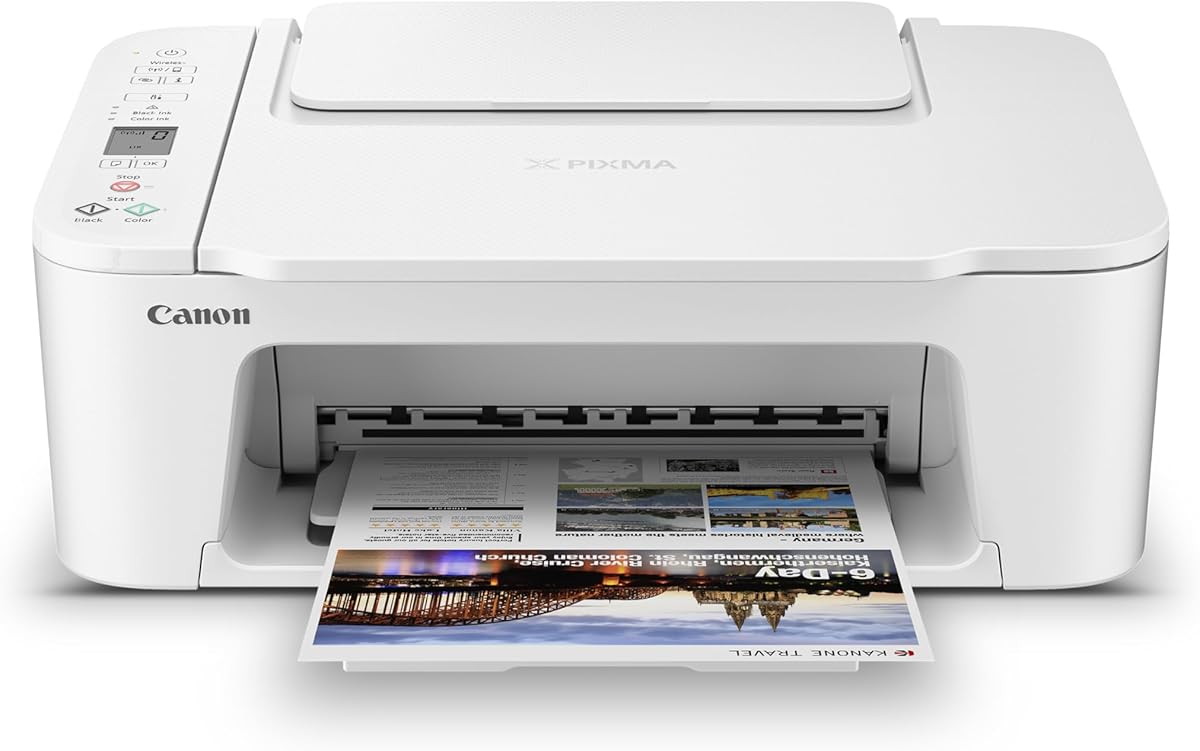
Canon PIXMA TS3720
4.0Editor score
Wireless Wi-Fi connectivity
Print scan and copy
Easy mobile printing
Finding a printer that works seamlessly with your Chromebook can be tricky. You need reliable wireless connectivity and easy setup without complex driver installations. These models offer straightforward cloud printing and app support.
We compared ten popular inkjet printers based on compatibility, speed, and value. Each option supports mobile printing and connects via Wi-Fi. We looked at features like duplex printing and scanning to help you decide.
Every pick shows key specs and real user feedback to guide your choice. Prices and availability change frequently so check current listings before buying. This guide helps you find the right fit for your home office.
4.0Editor score

4.2Editor score

4.3Editor score
As an Amazon Associate we earn from qualifying purchases.
This side-by-side comparison highlights key features across all ten models. Look at connectivity options, print speeds, and included accessories to find the best match.


This versatile all-in-one offers strong performance for Chromebook users needing quality prints. Its 4.2 star rating reflects reliable wireless connectivity and crisp output. The hybrid ink system ensures sharp text and vivid colors.
We may earn a commission when you buy through this link, at no additional cost to you.
Setup is straightforward with dual-band Wi-Fi support for stable connections. The OLED display simplifies monitoring ink levels and adjusting settings. Mobile printing works smoothly via the Canon PRINT App or AirPrint.
While it lacks an automatic document feeder, it handles single-page tasks well. Duplex printing saves paper efficiently. Ink costs can add up if printing frequently without subscriptions.
Ideal for home offices needing quality and ease of use. It balances features and price effectively. Most users find it dependable for daily school and work documents.
Dual-band Wi-Fi ensures stable connections from any room. You can print directly from Chromebooks without complex drivers.
Hybrid ink delivers sharp text and vibrant colors. Photos look professional even on standard paper.
We may earn a commission when you buy through this link, at no additional cost to you.
An excellent entry-level choice for basic Chromebook printing needs. It scores 4.0 stars for reliable performance and budget-friendly price. Setup takes minutes without a computer.
We may earn a commission when you buy through this link, at no additional cost to you.
Dual-band Wi-Fi keeps connections stable for schoolwork. Mobile printing via app or AirPrint works seamlessly. The LCD screen guides users easily through tasks.
Print speeds are moderate and duplex is not supported. Paper capacity is limited for larger jobs. However, it handles daily tasks reliably.
Perfect for students or light home use. It offers essential features without extra cost. Most buyers appreciate its straightforward operation.
Great price point for essential printing. Works well with Chromebooks right out of the box.
Direct Wi-Fi setup means no computer needed. Mobile apps make printing easy.
We may earn a commission when you buy through this link, at no additional cost to you.
This model brings premium features like auto duplex and an ADF. It leads with 4.3 stars for performance and build. Ideal for handling multi-page documents efficiently.
We may earn a commission when you buy through this link, at no additional cost to you.
The OLED display offers clear navigation and status. Wireless setup is seamless for Chromebook users. Print quality remains sharp and vivid.
Cost is higher than basic models. Ink costs depend on usage habits. However the added features justify the investment.
Best for home offices needing extra functionality. It saves time with duplex and ADF. Most users rate it highly.
Auto document feeder handles multi-page scanning quickly. Duplex saves paper and time.
OLED panel shows settings clearly. Adjustments are intuitive.
We may earn a commission when you buy through this link, at no additional cost to you.
A budget-friendly all-in-one with smart AI tools. Its 3.7 rating reflects mixed user feedback. AI helps optimize layout and reduce waste.
We may earn a commission when you buy through this link, at no additional cost to you.
Instant Ink trial offers convenience and savings. Dual-band Wi-Fi ensures connection stability. Setup is quick via the HP app.
Print speeds are modest compared to rivals. Color output is decent but not fast. Suitable for light daily printing.
Good for households prioritizing smart features. The AI helps avoid mistakes. Many find it reliable for basic tasks.
AI optimizes web pages for printing. Reduces wasted ink and paper.
Trial helps reduce initial costs. Delivers ink automatically.
We may earn a commission when you buy through this link, at no additional cost to you.
Similar to TS6520 but simpler. Rated 4.0 stars for reliability and value. Hybrid ink system ensures crisp output.
We may earn a commission when you buy through this link, at no additional cost to you.
Auto duplex printing saves paper. Wireless setup works with Chromebooks. EPEAT certification supports green initiatives.
Lacks ADF and premium display. Still handles standard tasks well. Good for small spaces.
Recommended for eco-conscious users. It balances cost and features. Most find it dependable.
EPEAT Silver and Energy Star certified. Saves paper with duplex.
Hybrid ink system ensures sharp text. Photos remain vibrant.
We may earn a commission when you buy through this link, at no additional cost to you.
Adds fax and ADF to basic features. Rated 3.9 stars for versatility. Alexa smart reorder keeps ink stocked.
We may earn a commission when you buy through this link, at no additional cost to you.
ADF handles multi-page documents easily. Duplex printing reduces waste. Setup is straightforward for mobile users.
Speeds are lower than premium options. Fax is niche but useful for some. Great for small home offices.
Best for users needing fax. The smart reorder saves effort. Many find it practical.
Built-in fax for sending documents. Useful for home businesses.
Alexa can reorder ink automatically. Never run out unexpectedly.
We may earn a commission when you buy through this link, at no additional cost to you.
Noted for speed with 16 ppm black printing. Rated 3.8 stars for performance. Cloud apps integrate well with Google Drive.
We may earn a commission when you buy through this link, at no additional cost to you.
ADF scans multiple pages quickly. The tray holds 150 sheets. Duplex printing is standard.
Build feels less premium than others. Color speed is lower. Still efficient for volume.
Good for users prioritizing speed. Cloud features help remote work. Most find it functional.
16 ppm black speed is fast. Ideal for heavy printing.
Supports major cloud apps easily. Access files remotely.
We may earn a commission when you buy through this link, at no additional cost to you.
Features a large touchscreen and HP AI. Rated 4.1 for performance. Touchscreen navigation simplifies settings.
We may earn a commission when you buy through this link, at no additional cost to you.
AI optimizes print layouts effectively. Instant Ink trial includes savings. Duplex printing works smoothly.
Cost is higher than basics. Original HP ink only. Great for power users.
Best for those wanting tech. Touchscreen adds convenience. Most find it efficient.
Large color touchscreen simplifies tasks. Easy menu navigation.
HP AI removes unnecessary content. Saves ink and time.
We may earn a commission when you buy through this link, at no additional cost to you.
Budget model with an ADF and AI tools. Rated 3.5 stars for mixed experiences. ADF helps with scans.
We may earn a commission when you buy through this link, at no additional cost to you.
AI optimizes documents automatically. Instant Ink trial saves money. Wireless setup is easy.
Speeds are slower than rivals. Rating reflects some issues. Good for light tasks.
Recommended for tight budgets. ADF is rare at this price. Many find it useful.
Includes auto document feeder at low cost. Saves manual feeding.
AI helps remove unwanted content. Improves layout.
We may earn a commission when you buy through this link, at no additional cost to you.
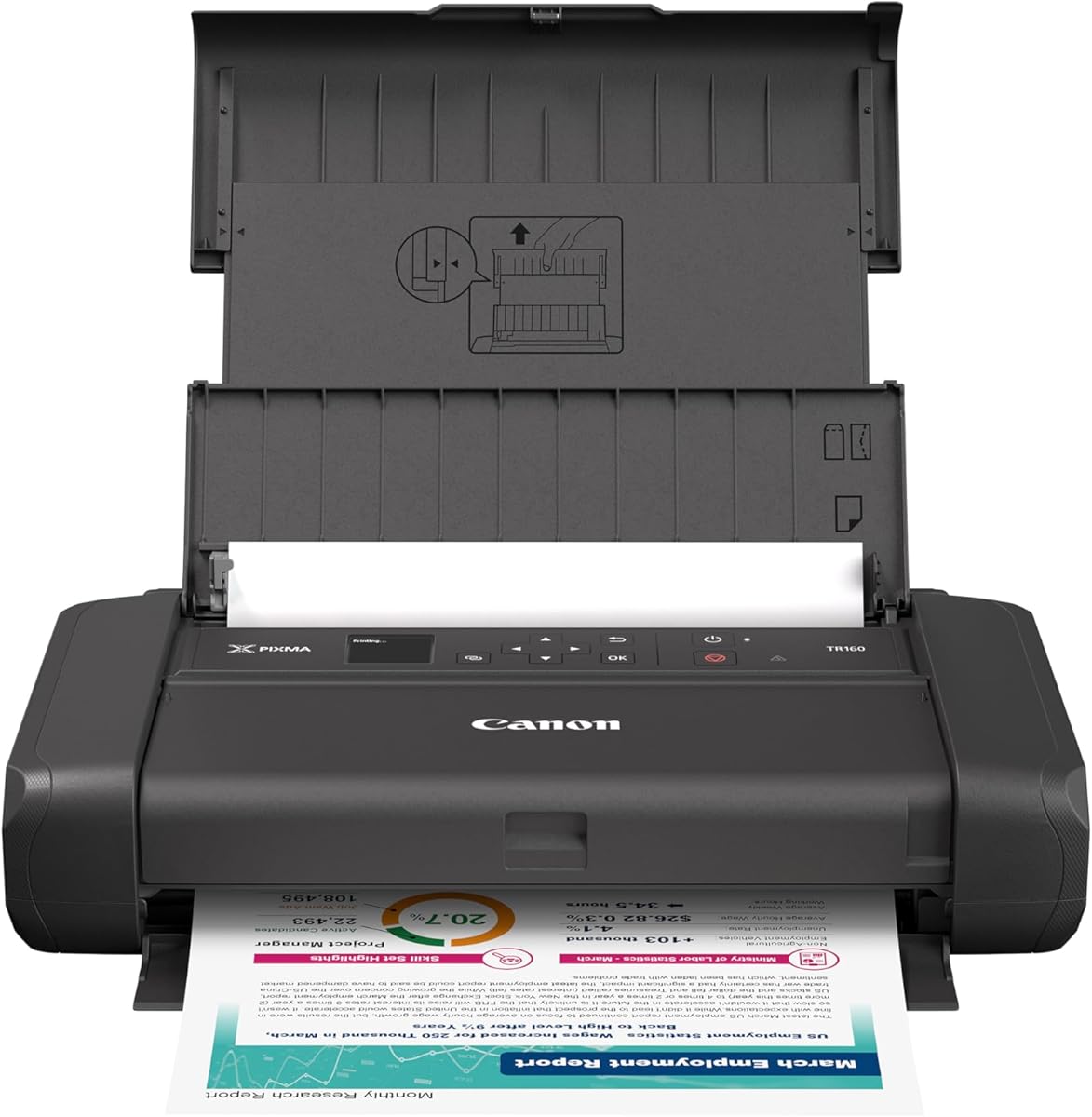
Unique portable model ideal for travel. Rated 4.2 for performance. 5-color ink delivers excellent photo prints.
We may earn a commission when you buy through this link, at no additional cost to you.
Wireless direct mode connects without router. OLED display shows status clearly. Fits in backpacks easily.
Price is higher than standard units. Paper capacity is small. Best for on-the-go needs.
Ideal for travelers needing prints. Quality is outstanding. Most find it practical.
Lightweight and fits in backpack. Works anywhere with power.
Connect directly without router. Great for travel.
We may earn a commission when you buy through this link, at no additional cost to you.
Selecting the right printer for your Chromebook involves checking connectivity, speed, and additional features. Here are key factors to consider.
Ensure the printer supports Wi-Fi and mobile printing. Chromebooks rely on cloud apps so look for AirPrint or manufacturer apps that work seamlessly without drivers.
Prioritize dual-band Wi-Fi for stable connections. This prevents dropouts during printing jobs.
Check pages per minute ratings for both black and color. Faster printers save time for large documents especially in busy households or offices.
Balance speed with cost. Lower speed models often cost less.
Consider if you need scanning and copying. All-in-one units save space and offer convenience for homework or office documents.
Look for models with ADF if scanning multi-page documents.
Check tray capacity and duplex features. Automatic duplex printing saves paper and helps with thicker reports.
Larger trays reduce refilling frequency.
Chromebooks integrate well with cloud apps. Ensure the printer supports major services like Google Drive or Dropbox.
Mobile apps should allow printing directly from phone or tablet.
Consider ink subscription services like Instant Ink. These can save money over time by delivering ink automatically.
Compare cartridge yields to estimate ongoing costs.
Look for easy setup without a computer. LCD screens or touchscreens simplify navigation.
User-friendly interfaces reduce frustration during use.
Balance upfront price with long-term costs. Compact designs fit better in small spaces.
Check dimensions to ensure fit on your desk.
Connect your printer to your Wi-Fi network following the manual steps. Once linked print from Chromebook apps by selecting the printer in the print dialog.
Install the manufacturer app for additional features. This allows mobile printing and ink monitoring directly from your device.
Regularly clean print heads and use printer when idle to prevent clogs. Store in a dry place away from direct sunlight.
Most modern Chromebooks support AirPrint or manufacturer apps. Check device specs for wireless compatibility before buying to ensure seamless setup without drivers.
Yes many printers work without drivers using cloud printing. Install the manufacturer app if available for extra features like ink monitoring and setup.
Budget all-in-one models like Canon PIXMA TS3720 suit students. They offer easy setup and wireless printing essential for schoolwork at home.
Use the printer's companion app or Chrome OS scanning tools. Place documents on scanner glass or ADF and follow on-screen prompts to save files.
Subscriptions like Instant Ink can save money with heavy printing. They deliver ink automatically and you only pay for pages printed each month.
Yes most inkjet printers support borderless photo printing. Select photo paper settings in print dialog for best quality results on your Chromebook.
Check both devices are on the same Wi-Fi network. Restart printer router and Chromebook to resolve connection issues quickly.
Duplex saves paper and is useful for larger documents. Consider based on your printing volume to decide if the cost is worth it.
We reviewed ten top models suitable for Chromebook users with varying needs. Each offers unique features from budget-friendly options to premium all-in-ones.
Prioritize connectivity and speed if you print frequently. Look for mobile support and duplex options to streamline your workflow.
Check current prices and promotions before buying. This guide helps you pick a reliable printer that fits your home office.