
WAVLINK USB 3.0/USB C to HDMI Universal Video Adapter
4.4Editor score
Up to 6 Monitor Support
External Microphone Input
18 Months Warranty
This guide compares the top Displaylink Adapter models for Mac and Windows, evaluating dual 4K performance, driver compatibility, and portable docking features.
Finding the right Displaylink Adapter can transform your laptop into a dual monitor workstation instantly. These devices use advanced technology to bypass native GPU limits, allowing you to extend your screen across multiple high-resolution displays without needing extra video ports.
We evaluated ten leading models based on video quality, system compatibility, and build durability. Our comparison focuses on how well each adapter handles 4K@60Hz output, supports Mac M1-M5 chips, and integrates additional ports for charging and peripherals.
Each pick below highlights a specific strength like budget value or premium performance. Prices and stock change frequently so verify details before buying. We ensure all links lead to current listings for the exact models reviewed in this comprehensive guide.
4.4Editor score

4.8Editor score

4.5Editor score
This table provides a quick side-by-side overview of the ten top-rated Displaylink Adapter models available today. Compare their key specifications including maximum resolution, connector types, and special features to identify the best match for your specific workstation needs.



The ACASIS adapter is a robust solution for users needing dual 4K displays from a single port. With a rating of 4.3 it stands out for its ability to extend screens on Mac M1 to M5 chips. It effectively bypasses native limitations to offer a full dual monitor experience.
We may earn a commission when you buy through this link, at no additional cost to you.
Key strengths include 100W PD charging which keeps laptops powered during long sessions. The aluminum design ensures heat dissipation and durability. Three USB-A ports provide convenient peripheral connectivity for mice and drives. Its driver software works smoothly on macOS and Windows.
Trade-offs involve the lack of HDCP support meaning streaming services like Netflix will not work. Users must also download and install the DisplayLink driver before use. However for productivity tasks these limitations are acceptable. The adapter delivers stable performance for office and coding workflows.
This adapter is ideal for Mac and Windows users seeking a reliable dual setup. It balances high performance with portability and power delivery. If you need to extend your workspace without sacrificing charging the ACASIS adapter is a top recommendation to consider.
The 100W USB-C PD port delivers high-speed charging so you can power your laptop while driving two external displays without draining your battery.
It supports macOS M1 through M5 and Windows PCs seamlessly with a single driver install making it perfect for hybrid environments.
We may earn a commission when you buy through this link, at no additional cost to you.
The WAVLINK adapter provides excellent value with its hybrid cable design that fits both USB-C and USB-A ports. It offers dual 4K 60Hz output and works well with Mac M1 to M5 systems. A rating of 4.4 reflects its consistent performance and ease of setup.
We may earn a commission when you buy through this link, at no additional cost to you.
Strengths lie in the hybrid 2-in-1 cable which removes the need for separate adapters. It supports ChromeOS and Windows effectively ensuring broad compatibility. The dual HDMI splitter is ideal for productivity software and web browsing. Setup is straightforward with clear instructions provided.
Limitations include no support for HDCP protected content like streaming apps. The driver installation step adds a slight hurdle during setup. Despite these factors it remains a strong choice for office work. The hybrid cable adds significant convenience for travel.
Users looking for flexibility should consider this model for its cable design. It delivers dual 4K performance at a competitive price. Whether you have older Windows laptops or modern Macs this adapter adapts to your port needs.
The equipped 2-in-1 cable allows for easy connectivity to USB-C and USB-A ports providing versatile compatibility with different devices.
Designed for web and productivity software this adapter enhances multitasking with seamless dual screen extension.
We may earn a commission when you buy through this link, at no additional cost to you.
This WAVLINK adapter stands out for its ability to support up to six monitors across multiple PCs. It is an affordable option with a 4.4 rating. It connects easily to USB-C or USB-A and includes audio jacks for added convenience.
We may earn a commission when you buy through this link, at no additional cost to you.
Strengths include the 18 month warranty which shows manufacturer confidence. It supports Windows 11 and macOS including newer M chips. The external microphone and earphone outputs allow for better conferencing. It is a compact device with an LED status indicator.
Trade-offs involve lower max resolutions compared to premium 4K models. The driver install is necessary which adds setup time. Still for budget conscious users needing multi-monitor support this is a powerful tool. It expands your workstation efficiently.
Ideal for general productivity and office setups where high refresh rates are not critical. It supports a wide range of systems. If you need to connect multiple screens on a budget this adapter delivers reliable results.
Connect multiple additional monitors to your computer with one adapter required per monitor up to six total monitors on PCs.
External 2.1CH Microphone in and Earphone output make you use conveniently for calls and media.
We may earn a commission when you buy through this link, at no additional cost to you.
The Plugable adapter is recognized by MacWorld for beating the Mac display limit. It adds two 4K 60Hz displays to MacBook M1 through M5 from a single USB-C port. This makes it a top choice for Apple users needing triple screen setups.
We may earn a commission when you buy through this link, at no additional cost to you.
Strengths include lifetime support from a North American team. It is designed for hybrid office setups. The dual 4K 60Hz HDMI ports support extended and mirror modes. It works with macOS 11+ and Windows 10+ seamlessly.
Trade-offs involve the driver requirement on Mac which is a standard DisplayLink step. It does not support HDCP protected content for entertainment. However for coding and office apps it works fully. It is built to meet IT department demands.
Mac users should prioritize this adapter for its proven reliability. The lifetime support adds significant long-term value. If you need to expand your screen beyond the native limit this is the best solution available.
Adds two 4K 60Hz HDMI external displays to MacBook M1 through M5/Neo from a single USB-C port.
Designed with reliability at its core this adapter meets the deployment demands of IT departments.
We may earn a commission when you buy through this link, at no additional cost to you.
This Plugable adapter uses the powerful DL-6950 chipset to deliver dual 4K 60Hz performance. It offers flexible USB-C or USB-A connectivity making it versatile for older and newer laptops. With a 4.5 rating it represents premium quality and reliability.
We may earn a commission when you buy through this link, at no additional cost to you.
Strengths include the attached USB-A adapter which simplifies travel between systems. It supports plug-and-play on ChromeOS and has driver support for Windows. The dual HDMI monitors are ideal for office applications and coding. It is backed by lifetime North American support.
Trade-offs involve macOS compatibility which is not recommended for this model. The driver install is needed for Windows systems. However for business and hot-desk workspaces it is ideal. The integrated adapter stays with the device for convenience.
Business users and IT departments will appreciate its robust design. It is built for everyday productivity and reliability. If you need a consistent dual display experience across various laptops this is the best premium choice.
Connect directly to modern Thunderbolt laptops or use the attached USB-A adapter for compatible systems.
Designed for reliable home office and business use with dual-display support for multitasking.
We may earn a commission when you buy through this link, at no additional cost to you.
The StarTech mini dock offers a compact solution for USB-A laptops. It supports dual DP 4K 60Hz video output and includes a GbE port for network connectivity. A 4.4 rating confirms its reliability for small in-office workspaces.
We may earn a commission when you buy through this link, at no additional cost to you.
Strengths include its bus-powered design and attached cable for portability. It reduces port strain on devices like Surface Pros. The wide device compatibility covers ultrabooks and chromebooks. Automatic driver setup simplifies deployment.
Trade-offs involve its USB-A only connection which may not suit newer laptops. It is designed for portability so it might lack other ports. Still for business travelers needing dual screens it is ideal. It is easy to deploy and set up.
This adapter is perfect for small work-from-home workspaces. It combines video and network connections in one tiny device. If you have a Surface Pro or older ultrabook this is a practical choice.
This bus-powered USB-A mini docking station has a compact form factor ideal for small workspaces.
This multiport adapter hub features automatic driver setup and supports multiple OS platforms.
We may earn a commission when you buy through this link, at no additional cost to you.
This ACASIS adapter has the highest rating of 4.8 among top picks. It features dual DP ports for 4K@60Hz output which is excellent for designers. It works seamlessly as a MacBook dual monitor adapter solving native single-screen limitations.
We may earn a commission when you buy through this link, at no additional cost to you.
Strengths include 100W PD charging and 3 USB-A ports for peripherals. The aluminum alloy build ensures heat dissipation and durability. The primary DP port supports MST functions for advanced setups. It delivers ultra-stable video signals without flicker.
Trade-offs involve the DP interface requiring cables if monitors are HDMI. The driver install is mandatory for first use. However the build quality is premium and travel friendly. It is an ideal choice for power users.
Designers and power users should choose this for its superior rating. It offers a high-performance docking station experience. If you need stability and charging this adapter is a great investment.
This displaylink adapter features 2 DP ports with 4K@60Hz resolution acting as a high-performance docking station.
This hub includes 3 USB-A ports to connect your mouse keyboard and flash drives with convenience.
We may earn a commission when you buy through this link, at no additional cost to you.
This WAVLINK adapter offers enterprise-level data protection with its encrypted DL-chip. It delivers dual 4K@60Hz via USB-C or USB-A ports. A 4.6 rating shows strong performance for financial data analysis and HD video conferencing.
We may earn a commission when you buy through this link, at no additional cost to you.
Strengths include compatibility with Windows macOS and ChromeOS. The DL-chip encryption safeguards sensitive information during operations. It has advanced security features that trust secure corporate environments. Life-long technical support is provided for all issues.
Trade-offs involve no Linux Unix or iOS support. Driver installation is required which adds setup time. However for security-conscious businesses it is perfect. The advanced security adds value to daily workflows.
Enterprises should prioritize this model for its secure DL-chip technology. It expands your workspace while keeping data safe. If you work with sensitive financial data this adapter is the ideal choice.
Equipped with encrypted DL-chip technology this adapter ensures enterprise-level data protection.
Effortlessly mirror or extend your screen across two monitors to maximize efficiency.
We may earn a commission when you buy through this link, at no additional cost to you.
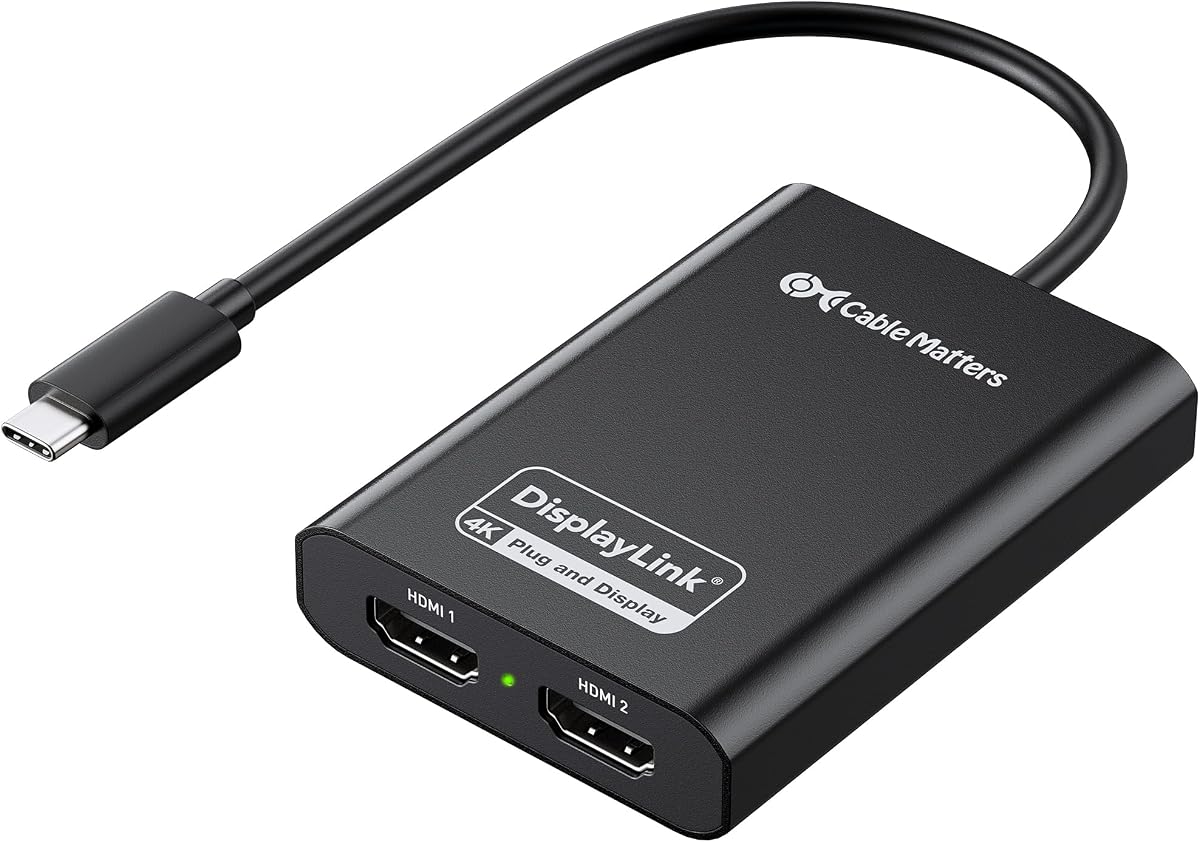
The Cable Matters adapter is DisplayLink certified for reliable performance. It breaks the single-display limit on Macs and Windows with true dual extended displays. A 4.0 rating reflects solid functionality for productivity workflows.
We may earn a commission when you buy through this link, at no additional cost to you.
Strengths include the durable aluminum housing that dissipates heat efficiently. It supports two 4K 60Hz HDMI monitors via USB-C. The adapter is compact and designed for everyday use. It eliminates 30Hz flicker common in cheaper adapters.
Trade-offs involve specific CPU requirements for best dual 4K performance. The driver install is mandatory for Mac users. Still it creates a real dual-monitor workspace for creative workflows. It is a perfect DisplayLink USB C adapter.
Mac users wanting to expand their workspace should consider this. It is certified for reliability. If you need to expand to two screens this adapter handles the load well.
This adapter uses DisplayLink technology and requires driver installation for best performance.
Enjoy two extended 4K 60Hz HDMI monitors on macOS or Windows for true multitasking.
We may earn a commission when you buy through this link, at no additional cost to you.
The Sonnet adapter connects two 4K displays at 60Hz to Macs and Windows computers. It works with Thunderbolt or USB 3 or 4 ports. A 4.4 rating confirms its reliability for expanding your onscreen work and play area.
We may earn a commission when you buy through this link, at no additional cost to you.
Strengths include support for higher refresh rates like 144Hz on lower resolutions. It includes a USB-A female to USB-C male adapter for flexibility. The audio support adds value for media use. It is perfect for M1 or M2 Mac Notebooks.
Trade-offs involve the lack of extra USB ports. It focuses purely on video and audio. However for pure display expansion it is robust. It supports M1 Pro Max and Ultra for future-proofing.
Mac users should consider this for its Thunderbolt compatibility. It is ideal for connecting to larger screens. If you need to expand your workspace this adapter provides a solid solution.
Connect to a Thunderbolt or USB 3 or 4 Port for flexible expansion.
Supports audio and supports higher refresh rates for lower resolution displays.
We may earn a commission when you buy through this link, at no additional cost to you.
Choosing the right Displaylink Adapter requires understanding your laptop's ports and desired resolution. This guide breaks down key factors to help you select a reliable dual monitor solution.
Look for adapters that support dual 4K@60Hz output to ensure smooth visuals and sharp text. Some cheaper models may limit you to 30Hz which can cause flickering during scrolling.
Verify the maximum resolution supported by the adapter to avoid underutilizing your monitors.
Check if the adapter specifically lists support for your operating system version. Mac users often need to install drivers while some Windows versions are plug-and-play.
Ensure the adapter is designed to bypass native Mac display limits like the M1-M5 single-screen restriction.
Determine whether you need USB-C or USB-A connectivity based on your laptop model. Some adapters come with hybrid cables for flexibility.
Consider if you need extra USB ports for peripherals like mice and flash drives.
Adapters with 100W Power Delivery allow you to charge your laptop while using dual displays. This is crucial for mobile workstations to maintain battery life.
Prioritize models with PD charging if you need to keep your notebook powered during long sessions.
Most DisplayLink adapters require driver installation to function properly. Ensure the manufacturer provides clear instructions and up-to-date drivers.
Check for lifetime or long-term technical support in case of connectivity issues.
Aluminum housings provide better heat dissipation and durability for daily use. Lightweight designs make it easier to carry in a bag.
Choose a compact form factor if you plan to use the adapter while traveling or working from different locations.
Note that DisplayLink technology does not support HDCP protected content like Netflix or Disney+. Use separate adapters for streaming.
This limitation is standard across most DisplayLink adapters but is acceptable for productivity tasks.
Manufacturers like Plugable and WAVLINK offer warranties ranging from 12 months to lifetime support. This adds security to your investment.
Always verify the warranty period and return policy before purchasing to ensure customer protection.
Start by downloading the latest DisplayLink driver from the official website before connecting the adapter. Install the software and restart your computer to ensure the drivers are active and ready for use.
Connect the adapter to a USB-C or USB-A port on your laptop using the provided cable. Ensure the connection is secure and that the adapter is plugged into a power source if it supports external power delivery.
Care for the adapter by storing it in a dry place and avoiding excessive bending of the cable. Regularly check for driver updates to maintain optimal performance and prevent connectivity issues.
Yes most DisplayLink adapters require you to install the DisplayLink driver before first use. This software enables the adapter to communicate with your operating system. Download the driver from the manufacturer website to ensure compatibility.
No DisplayLink adapters do not support HDCP protected content which means streaming services like Netflix will not work. This is a standard limitation for productivity focused video adapters. Use a standard HDMI adapter for entertainment.
Yes many adapters are specifically designed to bypass the single display limit on M1 and M2 Macs. Check the product specifications to confirm Mac compatibility and ensure the DisplayLink driver supports your macOS version.
Most top adapters support dual 4K@60Hz output for sharp and smooth visuals. Some models may have specific requirements for CPU performance to achieve this resolution. Verify the max resolution in the product details.
Some adapters like Sonnet and WAVLINK include audio support for connecting speakers or headphones. Others may require you to use separate audio connections. Check the specs to see if audio is included in the HDMI output.
Certain models like the WAVLINK USB adapter allow up to six total monitors on PCs. This requires multiple adapters per monitor depending on the setup. Review the product details to see multi-monitor support.
We have highlighted the top 10 Displaylink Adapter models ranging from budget options to premium choices. Each offers unique strengths such as dual 4K performance Mac compatibility or power delivery.
Prioritize resolution and system compatibility to match your specific workstation needs. If you need charging and extra ports look for models with USB-C PD and USB-A hubs.
Prices change frequently so verify the current cost before finalizing your purchase. Click the links above to explore the best Displaylink Adapter for your setup today.