
darkFlash V92 9.2" PC Case Screen
4.1Editor score
9.2 inch ultra-wide panel
Free Station Space software
USB-C or 9-pin connection
Modern PC builds often include LCD screens to display real-time system stats or custom visuals. A good screen integrates seamlessly with your case while offering clear visibility and easy software control for monitoring purposes.
We analyzed ten top-rated models based on resolution, connectivity options, mounting flexibility, and software features. Our comparison covers both universal panels and case-specific kits to suit various hardware configurations.
Each pick highlights unique strengths like touch support, magnetic mounting, or dedicated cooling integration. Note that product availability and pricing can change rapidly, so check current listings before purchasing your display.
4.1Editor score

4.4Editor score

4.2Editor score
As an Amazon Associate we earn from qualifying purchases.
The following table provides a side-by-side comparison of all ten products evaluated in this guide. Use this overview to quickly identify key specifications and features that match your specific PC build requirements.




The Lian Li SM088X offers a compelling blend of size and functionality for PC enthusiasts seeking a secondary display. With a solid 4.4 rating from verified buyers, it delivers vibrant visuals and reliable hardware monitoring capabilities right out of the box.
We may earn a commission when you buy through this link, at no additional cost to you.
Its standout feature is the ability to function as an independent secondary monitor via USB without consuming GPU ports. The included L-Connect 3 software allows deep customization of layouts and animations, while the built-in diffused ARGB lighting ensures aesthetic cohesion with the rest of your system.
Trade-offs include the need to strictly follow installation instructions regarding screw types to avoid damage. The price is also higher than basic panels, but the included mounting hardware and software ecosystem justify the cost for those valuing premium build quality.
This screen is ideal for builders who want a polished look with flexible mounting options. Whether attached to fan frames or case panels, it provides clear visibility of system stats and custom media, making it a top recommendation for modern gaming setups.
The built-in diffused ARGB strip syncs with your system for a unified look.
You can use this screen as a secondary monitor without needing a GPU video port.
We may earn a commission when you buy through this link, at no additional cost to you.
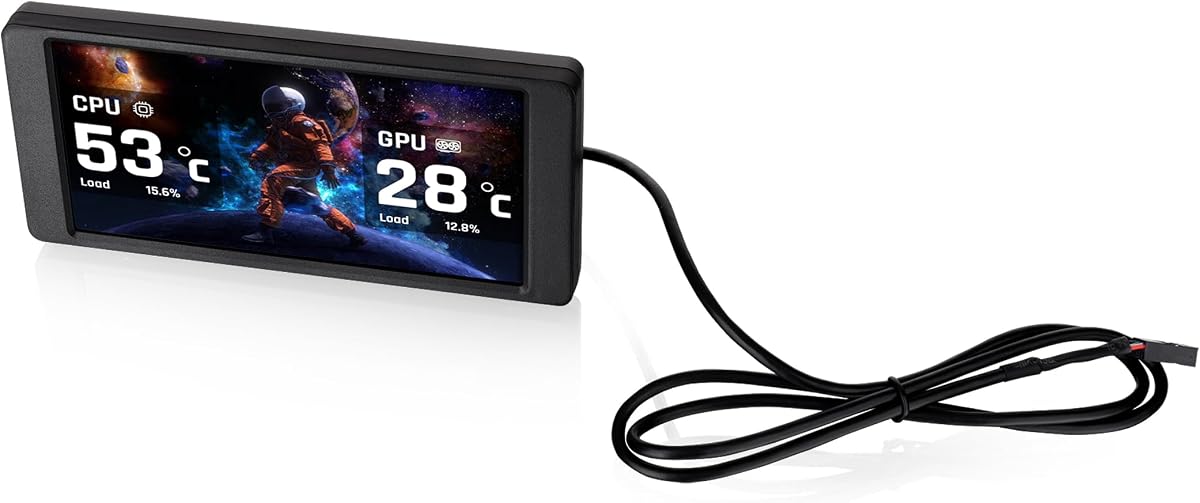
For budget-conscious builders, the darkFlash V92 provides excellent value with its 9.2-inch ultra-wide panel. It scores a 4.1 rating for delivering sharp visuals and useful hardware monitoring features without breaking the bank compared to premium options.
We may earn a commission when you buy through this link, at no additional cost to you.
The included Station Space software is free and supports dynamic widgets like weather and stock updates alongside system stats. The slim aluminum body fits well in most cases, and the choice between USB-C and internal 9-pin connections adds significant versatility.
Its main limitation is Windows exclusivity, meaning macOS or Linux users cannot utilize the software features. Additionally, it lacks HDMI input for external video sources. However, for pure system monitoring on Windows PCs, it offers impressive performance at a low cost.
This model is perfect for entry-level custom loops or builds where cost is a primary concern. It delivers clear readings and customizable themes, making it an accessible way to add a modern touch to your PC case setup.
You get a wide IPS display and useful software tools without spending a premium price.
Station Space offers free themes and dynamic widgets without needing paid add-ons.
We may earn a commission when you buy through this link, at no additional cost to you.
The wisecoco 12.6 Inch Bar LCD Screen stands out with its massive display area and integrated audio capabilities. Earning a 4.2 rating, it transforms your PC case into a multimedia hub with crisp visuals and dedicated speakers for a rich experience.
We may earn a commission when you buy through this link, at no additional cost to you.
Its design specifically targets the Hyte Y60 case but also supports landscape mode as a desktop display via HDMI. The kit includes necessary cables and a screwdriver, making installation straightforward for those upgrading existing builds or starting new ones.
Keep in mind it relies on external power via DC or micro USB and may require extra cabling for cases without Y60 panel compatibility. These constraints are minor given the screen size and audio features, which offer a unique value proposition among panel monitors.
Choose this if you prioritize display size and multimedia features over minimalism. It is an excellent choice for content creators or gamers who want a large secondary screen embedded directly into their PC chassis.
Built-in dual speakers provide audio output without needing external speaker cables.
Landscape mode allows it to function as an extra display on your desk.
We may earn a commission when you buy through this link, at no additional cost to you.
With a stellar 4.5 rating, the WOWNOVA 8 Inch LCD Screen is a favorite among users for its ease of use and reliable performance. It simplifies the setup process with a one-click start, making it accessible even for less experienced builders.
We may earn a commission when you buy through this link, at no additional cost to you.
The addition of desktop mode allows it to function as an extended screen, increasing its utility beyond just hardware monitoring. Dynamic video themes and customizable layouts are supported, allowing for a highly personalized look that matches your PC theme.
While it comes in white only, the software is intuitive and supports auto-start and brightness control. Users should note that it requires the proprietary software to run, which might be a slight dependency for some purists.
Ideal for those who want a hassle-free experience with a clean interface, this screen balances functionality and aesthetics well. It is a top choice for users seeking a secondary monitor that integrates smoothly into their PC without complex configurations.
The one-click setup process ensures you can start using the screen quickly.
Dynamic video themes allow you to show custom animations on your panel.
We may earn a commission when you buy through this link, at no additional cost to you.
The Hosyond 8.8 Inch Touchscreen Computer Secondary Screen brings interactivity to your PC case with its responsive capacitive touch panel. Rated 4.0 by users, it is particularly useful for controlling monitoring software directly from the screen without reaching for the keyboard.
We may earn a commission when you buy through this link, at no additional cost to you.
Its versatility shines with support for Raspberry Pi, Xbox, and Windows systems, making it a flexible tool for various projects. The high brightness ensures visibility even in well-lit rooms, and the driver-free design simplifies basic connectivity.
Keep in mind that while plug-and-play for basic functions, advanced features may require driver installation or separate software like AIDA64. These minor requirements are typical for touchscreen devices and do not outweigh the convenience of direct control.
This unit is perfect for tech enthusiasts who want an interactive display embedded in their rig. Whether for monitoring or media control, it offers a unique layer of engagement that standard screens lack.
Capacitive touch allows direct interaction with monitoring widgets or menus.
Supports multiple operating systems including Windows, Linux, and Raspbian.
We may earn a commission when you buy through this link, at no additional cost to you.
Thermalright Trofeo Vision offers a sleek 9.16-inch display designed primarily for AIO coolers but adaptable for case mounting. It holds a 4.3 rating for its sharp visuals and easy setup via USB-C, making it a strong contender for clean builds.
We may earn a commission when you buy through this link, at no additional cost to you.
The TRCC software provides preset themes and DIY options to customize your monitoring interface. Its slim dimensions allow it to fit into tight spaces without compromising readability, and the USB-C connection ensures modern compatibility.
Users should be aware that it is optimized for AIO integration which might limit standalone use if you lack the mounting bracket. However, for those who already have or buy the compatible cooler, it delivers a cohesive aesthetic and functional experience.
This is an excellent choice for users seeking a balance of price and performance. It effectively merges system monitoring with visual appeal, making it a smart pick for those upgrading to liquid cooling setups.
Designed to pair perfectly with liquid cooling solutions for a unified look.
TRCC software allows you to create unique layouts for your system stats.
We may earn a commission when you buy through this link, at no additional cost to you.
The Thermaltake 6.0 Inch LCD Screen Kit is designed to complement specific Thermaltake chassis like the View series. With a 3.8 rating, it offers a larger surface area than previous models for displaying customizable graphics and real-time monitoring data.
We may earn a commission when you buy through this link, at no additional cost to you.
It supports a wide range of media formats including MP4 and MOV, allowing for rich background visuals. The TTRGBPlus 3.0 software ensures improved system monitoring and control, aligning with existing Thermaltake ecosystems.
Its main drawback is the lower resolution compared to other options in this guide, which can affect text clarity for small stats. However, for users invested in the Thermaltake ecosystem, it provides unmatched integration and branding consistency.
This kit is best for users who already own compatible Thermaltake cases and want to extend the visual experience without third-party software. It delivers a cohesive aesthetic that matches the rest of your hardware.
Supports various video formats for dynamic backgrounds on your screen.
Works seamlessly with TTRGBPlus for unified lighting and monitoring control.
We may earn a commission when you buy through this link, at no additional cost to you.
GeeekPi brings a massive 12.6-inch screen to the PC case market with support for up to 10-point multi-touch. With a 4.0 rating, it excels in user interaction, allowing intuitive navigation of system stats or media without external peripherals.
We may earn a commission when you buy through this link, at no additional cost to you.
The plug-and-play nature means no extra software is needed for basic functionality, and it comes with built-in speakers for audio output. Its specific fit for the Hyte Y60 case ensures a clean and professional look that matches factory aesthetics.
The main limitation is the case-specific design, which restricts its use to Y60 owners unless modified. Also, users must remember to remove the protective film before use to avoid scratching the screen. Despite these points, it offers great versatility.
This is the ideal choice for Y60 users who want a premium interactive experience. It transforms the side panel into a usable touchscreen display that enhances both the utility and the gaming atmosphere of the system.
10-point multi-touch allows for natural gestures and intuitive control.
Built-in speakers provide sound output without needing external audio cables.
We may earn a commission when you buy through this link, at no additional cost to you.
The Thermalright TV 9.16 LCD uses magnetic suction for a sleek installation that requires no screws or complex hardware. With a 4.3 rating, it is highly valued for its ease of use and sturdy metal frame that ensures secure positioning.
We may earn a commission when you buy through this link, at no additional cost to you.
Its 1920×480 resolution offers crisp visuals for monitoring system parameters. The TRCC software allows switching between static and dynamic images, providing a versatile display that can be tailored to different moods or system loads.
While magnetic mounting is convenient, users should ensure the surface is clean and free of obstructions for best adhesion. The software dependency is standard for these devices and offers robust control over what is displayed.
Choose this screen if you want a minimalist and tool-free setup. It is particularly well-suited for those who value speed and simplicity in installation while still wanting a high-quality display for their PC case.
Magnetic suction allows you to place the screen quickly without tools.
Switch between static and dynamic images easily using the provided software.
We may earn a commission when you buy through this link, at no additional cost to you.
The Thermalrlght Trofeo Vision LCD 6.86-inch model is an option for those needing a smaller display that can attach to coolers or chassis walls. While it has a lower rating of 3.4, it provides a budget-friendly entry into PC case monitoring.
We may earn a commission when you buy through this link, at no additional cost to you.
Its magnetic design allows flexible positioning across different points of the chassis without fixed mounting points. The support for DIY dynamic and static images ensures that even this smaller screen can offer personalized visuals.
Given the compact size and resolution, text readability might be a challenge for detailed stats compared to larger panels. However, for simple temperature readings or logos, it serves well at a very attractive price point.
Ideal for builders with tight space constraints or specific cooler setups, this screen offers functionality where larger panels would not fit. It is a practical solution for targeted monitoring needs.
The compact size makes it perfect for limited spaces inside a PC case.
Magnetic design allows movement to different positions without fixed screws.
We may earn a commission when you buy through this link, at no additional cost to you.
Selecting the right LCD screen involves considering how you plan to use it and how it will fit with your existing hardware. The following factors will help you narrow down your choices to find the perfect display.
Screen size dictates how much information you can display clearly. Larger screens like 12.6 inches offer more real estate for complex layouts, while smaller 6-inch panels focus on essential stats. Resolution affects text clarity, so aim for higher pixel counts if readability is a priority.
Consider your case dimensions and desired visibility when choosing size and resolution.
Most screens use USB Type-C or internal 9-pin headers to connect to your motherboard. This design keeps your GPU ports free for main displays. Some models also offer HDMI for external use. Ensure your motherboard has the necessary ports or headers.
Check your motherboard USB headers and available ports before purchasing to guarantee compatibility.
Software controls the content displayed on your screen. Some brands like Lian Li and Thermalright offer dedicated apps with themes and widget support. Others rely on third-party tools like AIDA64. Look for intuitive software that supports your preferred data points.
Verify that the included software meets your customization needs before finalizing your purchase.
Mounting methods vary from magnetic attachments to screw-in brackets. Magnetic options are easier for quick changes, while brackets offer stability. Ensure the screen fits your case panel or fan frame to avoid clearance issues inside the chassis.
Review the mounting requirements to ensure the screen can be installed securely in your build.
Some screens are designed specifically for AIO coolers, integrating directly onto the radiator. If you are building a custom loop, ensure the screen dimensions match your water block or pump head. Universal screens offer more flexibility across different cooling solutions.
Match the screen design with your cooling setup to avoid compatibility issues or leaks.
Most screens are USB powered and consume minimal electricity. However, some models require external DC adapters which adds cable clutter. Check the power requirements to ensure your PSU or USB port can supply sufficient current for stable operation.
Prefer USB-powered models to reduce cable management complexity in your build.
Certain models come with built-in speakers for audio output. This is useful if you want to play media directly from the case display without external speakers. For purely monitoring purposes, this feature might be unnecessary but adds value for multimedia builds.
Decide if built-in audio is necessary for your use case to avoid paying for unused features.
Prices vary based on size, resolution, and included accessories. Entry-level models offer basic functionality, while premium options include high-quality panels and software ecosystems. Balance your budget with the features that matter most to your setup.
Set a budget range and compare features across models to find the best value.
Start by connecting the screen to an available USB 2.0 9-pin header or USB Type-C port on your motherboard. Most devices are plug-and-play, but ensure you install the recommended software on your PC to enable monitoring features.
Once installed, configure your display themes using the provided software. You can often choose between showing hardware stats or custom images. Adjust brightness and layout settings to ensure readability without distracting from your main monitor.
To maintain your screen, avoid touching the panel surface excessively to prevent scratches. Use compressed air or a soft cloth to clean the glass regularly. Ensure cables are neatly tucked away to prevent tripping or accidental disconnection during maintenance.
Most screens require specific software provided by the manufacturer to display custom themes or hardware stats. For example, models from Lian Li or Thermalright need their respective apps to function fully. Some budget options may support third-party tools like AIDA64 instead.
No, these screens are designed to connect via USB headers or Type-C ports on the motherboard. This setup allows them to operate as secondary displays without using HDMI or DisplayPort outputs from your graphics card, preserving those slots for main monitors.
Compatibility varies by model. While some brands support multiple OS options, many proprietary software tools are Windows only. Always check the product specifications for macOS or Linux support before purchasing if you are using a non-Windows operating system.
Mounting typically involves brackets that attach to case fans or panels. Some models feature magnetic backs for easier placement. Always follow the included installation guide and ensure the screws used are the correct length to avoid damaging the screen or case components.
Yes, the screens are low voltage and safe to touch. However, avoid pressing hard on the display surface to prevent damage. Touchscreens are designed for interaction, but standard panels should be handled with care to maintain their integrity.
Most software allows you to play local videos or animated themes. However, performance depends on your CPU and system load. If gaming, ensure the screen settings do not distract from your gameplay or impact system performance significantly.
Most screens draw power from the USB connection or a DC adapter included in the box. The motherboard USB header typically provides sufficient power, but high-end models may require a dedicated cable. Check the package contents to confirm included power options.
Yes, most software allows switching between static images and dynamic data. You can set themes to alternate between system stats and custom photos. This flexibility lets you personalize your PC's look depending on your current preferences.
Choosing the right LCD screen enhances both the functionality and the aesthetic appeal of your custom PC. Whether you prioritize high resolution, touch capabilities, or easy installation, there is a model in this roundup that suits your needs.
Prioritize compatibility with your existing case and software ecosystem to ensure a smooth setup experience. Models like the Lian Li SM088X and darkFlash V92 offer reliable performance across various price points for different user requirements.
Keep in mind that product features and availability can change over time. Always verify current specifications and read recent user reviews before making your final decision to ensure you get the best possible screen for your build.